
The Best DNS Servers for Browsing the Internet
If your PC loads web pages slowly or they don’t respond at all, try switching to the best DNS servers available in your geographic location.
Translated into English as the Domain Name System, DNS is an important protocol used by computers, services, or any resource connected to the Internet. It has several uses, but the most important one is resolving the IP address of the website or service you’re trying to reach. Simply put: this protocol converts human-readable website names (like google.com) into numeric addresses readable by a computer (216.58.210.163).
To do this, DNS servers are used — dedicated machines that act as intermediaries between users and the websites they visit. They maintain enormous databases storing the relationships between domain names and their corresponding IP addresses. When we try to connect to a website like the example, google.com, the request is sent to DNS servers to «translate» or «resolve» that URL. Their usefulness becomes clear if you imagine having to use and memorize the numeric addresses of every website you visit.
It’s worth noting that every Internet Service Provider automatically serves its own DNS to its customers. But there are alternatives that can be used, and in many cases they perform better. They not only offer advantages in Internet performance and reliability, but also provide added features such as geolocation, security, anti-censorship, and parental controls — and they update their IP address databases faster than most ISPs.
What are the best DNS servers?
There’s no single definitive answer to that question. It depends heavily on your ISP, geographic location, type of Internet service, hardware, and even the time of day, as performance tends to vary. There are quite a few alternatives, but among the most widely used, reliable, free, and up-to-date with the latest technologies, these stand out:
- Google Public DNS: 8.8.8.8 (primary) – 8.8.4.4 (secondary)
- OpenDNS: 208.67.222.222 (primary) – 208.67.220.220 (secondary)
- Cloudflare: 1.1.1.1 (primary) – 1.0.0.1 (secondary)
- You can also use more specialized options for accessing geo-blocked content, such as UnoDNS, CleanBrowsing, Quad9, or Unblock-US.
Test your connection
Before making any changes, it’s a good idea to test your Internet connection. There are applications that do the work for us. Perhaps the best-known is Namebench, but we’re also fond of DNS Benchmark. It’s available for Windows and can also be used on macOS or Linux via Wine. The software is available for free at the GRC website and requires no installation. Simply:
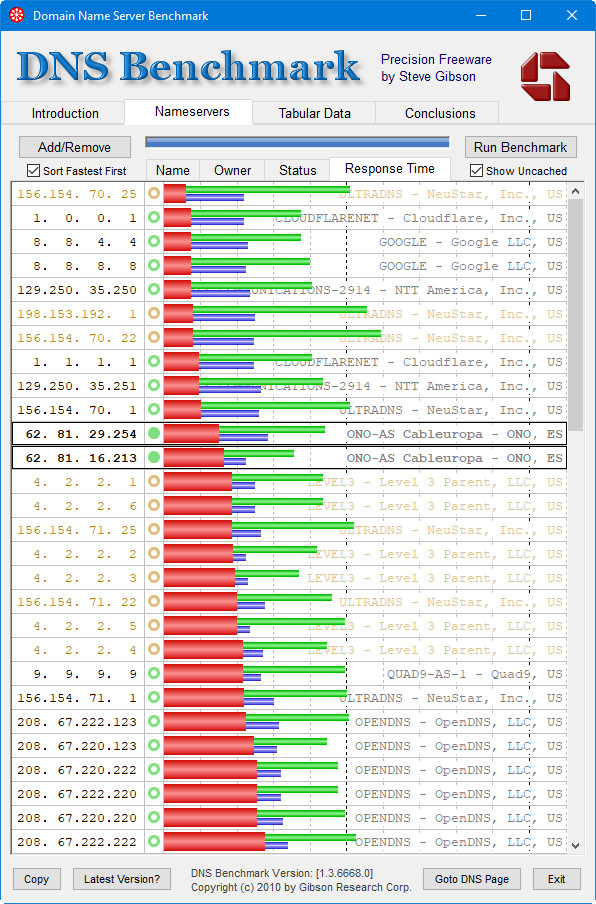
- Download the small application ‘DNSBench.exe’ (only 166 KB) and run it.
- Click the «Nameservers» tab to bring up the main benchmark screen and data pages.
- Click the «Run Benchmark» button to execute the benchmark tests and evaluate the DNS servers on your machine.
- If you’re interested, click the «Conclusions» tab to see all the details of the test results.
- The most interesting and visual information can be found under «Nameservers > Response Time.» If you keep the «Sort Fastest First» option checked, you’ll see the top-performing DNS servers ranked by response time, status, provider, and location.
It should be noted that this and other tests only provide performance data in terms of domain resolution response times. Some servers, even if slightly slower, may offer other advantages among those mentioned above. You decide what matters most.
How to use the best DNS servers on a PC
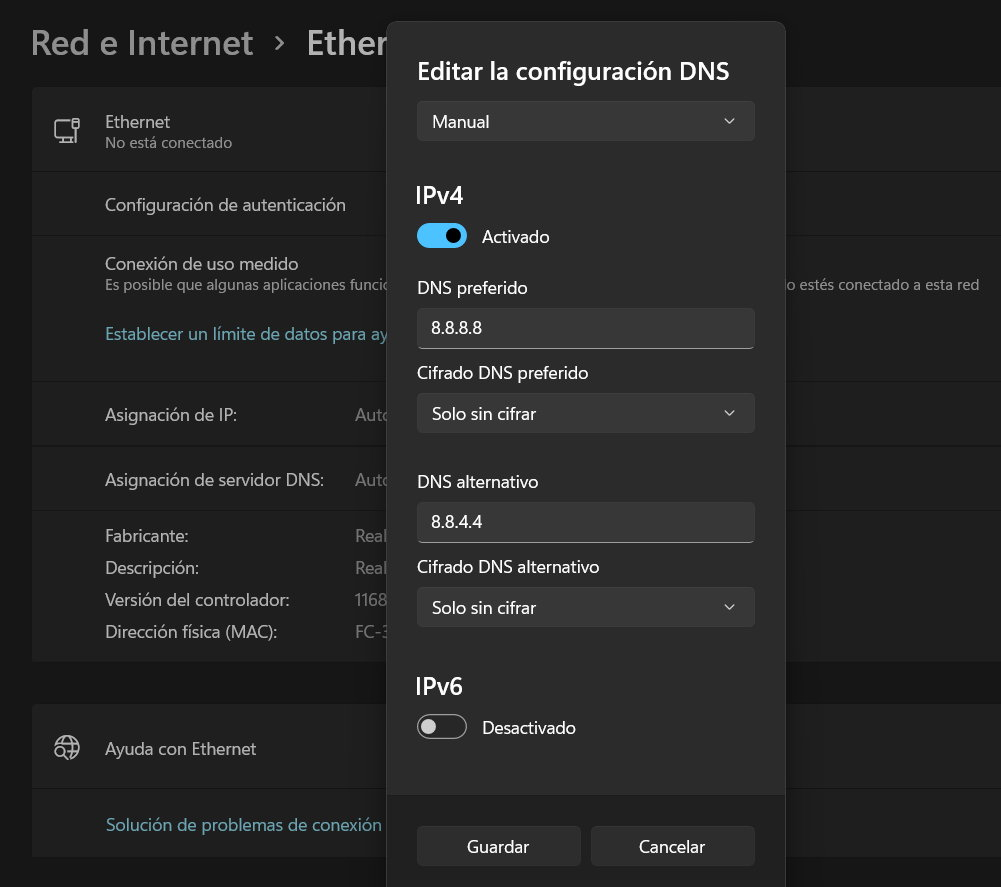
All operating systems allow you to change the domain name servers in the network settings section. Using Windows as an example, changes can be made from the Control Panel by simply updating the IP address associated with each server. In Windows 11, it’s even easier and more visual, as it can be done directly in Settings > Network & Internet:
DNS Jumper
There are also third-party tools that make the job easier. This Windows application is our favorite. It’s free and portable, meaning it requires no installation.
- Download the «DnsJumper.zip» file from its official page and extract it anywhere on your PC.
- Navigate to the extracted folder and run the «DnsJumper.exe» file.
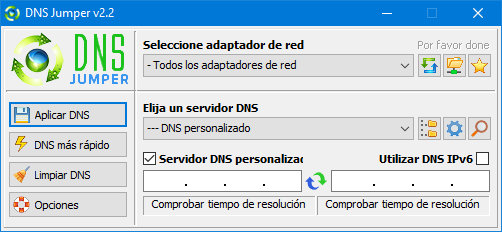
- You’ll see a simple yet powerful interface with several sections to manage, starting with choosing which network adapter — or all of them at once — you want to apply the changes to.
- Also noteworthy is the ability to select a server from a list that includes the best alternative DNS options.
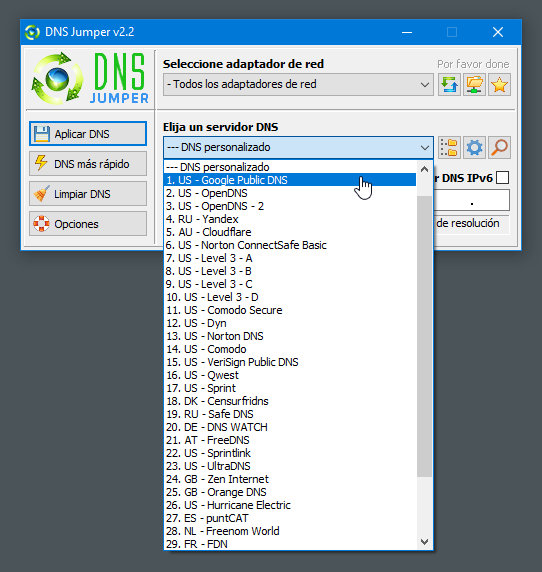
Finally, you can directly enter the IP address of whichever server you prefer, or enable IPv6 DNS. It includes a fastest-server checker, though for that purpose we prefer Namebench or the DNS Benchmark tool mentioned above.
As simple as it is powerful. Make whatever changes you see fit, apply them, and restart your computer for the changes to take effect.
What if I want to use alternative DNS across my entire network?
The method above only affects the specific PC on which you make the changes. If you want to use alternative DNS servers — rather than those provided by your ISP — for your entire local network and every device connected to it, the changes need to be made at the router level.
The easiest way to access your router is through its web interface using its IP address, by entering addresses such as 192.168.0.1, 192.168.1.1, or 192.168.2.1 (or similar) in any web browser, depending on your router model. Almost all routers of the same brand or model have a default username and password set by the manufacturer to simplify access.
This access information is publicly known and is often as simple as the classic «admin/admin.» A quick web search will reveal the credentials, and there are even specialized tools like RouterPasswords that provide login data for virtually any known brand and model.
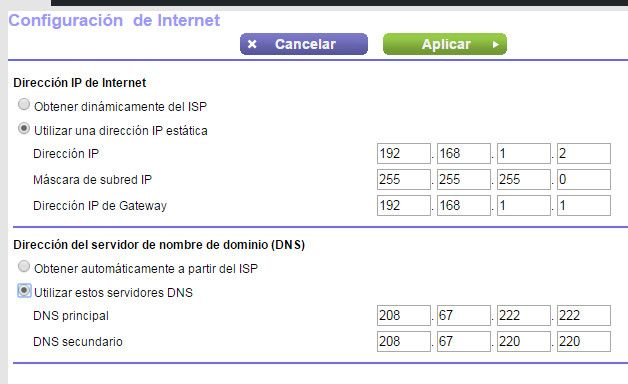
Once you have the IP address and password, log in to the web interface and update the section corresponding to DNS settings, which depending on the model you’ll find under «Internet Settings» or simply «DNS.»
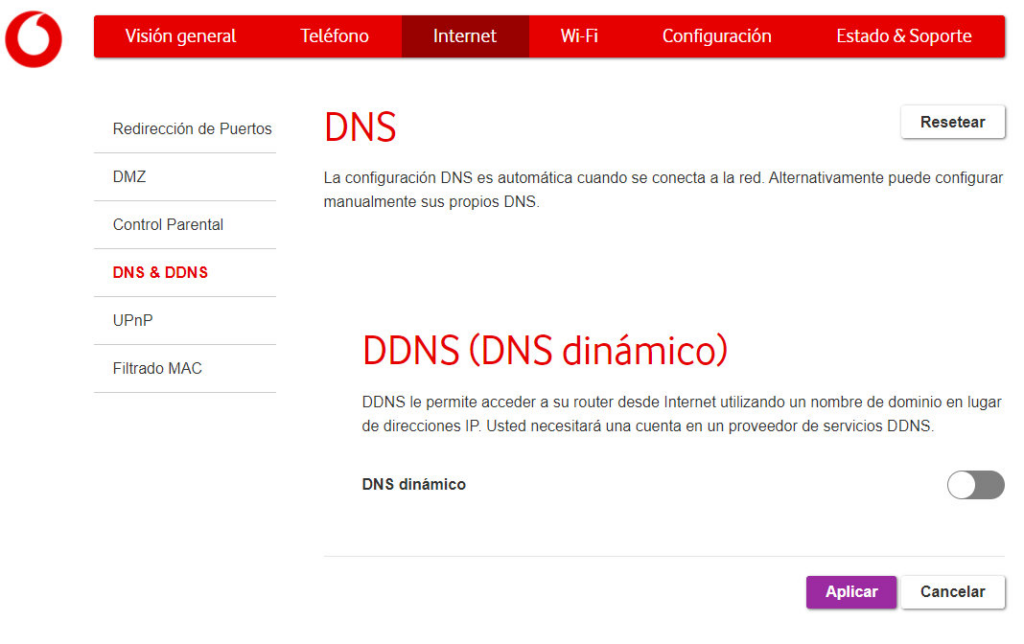
The exact steps will depend on your router, but the change is straightforward — it simply involves updating the server IP addresses. Restart the router for the changes to take effect on every device connected to your local network.
Changing your DNS is not a silver bullet, and its effects will always be limited by the speed and quality of the broadband service you have subscribed to. The same applies to the various features you need to configure each time you install a new router or device — something we’ve recommended on multiple occasions. But you have nothing to lose, because these changes are fully reversible and take just a few minutes to apply. And sometimes they make a real difference in how fast web pages load.
DNS Server Comparison Table
Here are the top DNS servers for 2026 with their IP addresses and key features at a glance:
[table “” not found /]Best DNS Servers Comparison Table
| DNS | Primary IP | Secondary IP | Speed | Privacy | Blocks Ads |
|---|---|---|---|---|---|
| Cloudflare | 1.1.1.1 | 1.0.0.1 | ★★★★★ | High | No (1.1.1.2 yes) |
| 8.8.8.8 | 8.8.4.4 | ★★★★★ | Medium | No | |
| OpenDNS | 208.67.222.222 | 208.67.220.220 | ★★★★☆ | Medium | Optional |
| Quad9 | 9.9.9.9 | 149.112.112.112 | ★★★★☆ | High | Malware yes |
| AdGuard DNS | 94.140.14.14 | 94.140.15.15 | ★★★★☆ | High | Yes |