Carry 1100 Operating Systems on a Single USB Drive
Unless you have multiple computers at home, if you enjoy testing new releases of both Microsoft’s operating system and the large number of Linux distributions that are launched and/or updated every year, you will likely need to rely on a virtual machine — unless you don’t mind testing directly on your PC with all that it entails. The solution to this problem is called Ventoy.
Ventoy is a program that allows you to install different operating systems on the same USB drive, making it the best way to test new versions of your favorite operating systems without having to use a resource-hungry virtual machine or commit to installing them on your main machine.
We have often recommended tools like Rufus. This tool lets you download ISO images of Windows and Linux and, at the same time, burn them to a bootable USB drive so you can use that drive to boot your computer from scratch. However, every time you want to switch operating systems, you have to completely reformat the drive and burn it again — which takes significant time and effort.
Ventoy is a somewhat different kind of tool. Instead of being an ISO-burning utility, what it does is allow you to create a bootable USB drive with a boot manager. Once this bootable system is created, you can use it to boot into any operating system without needing to burn it to the drive first.
How It Works
The way this program works is very straightforward. All you need is an empty flash drive (since existing data will be erased in the process) and to download the program from here. Once downloaded, run it and you will see a window like the one below.
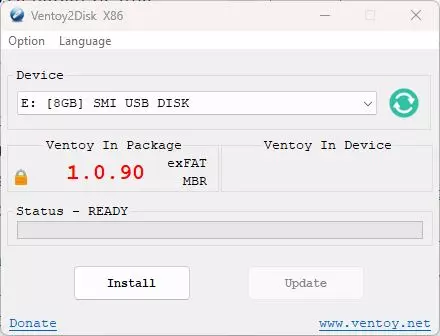
From here you can create your Ventoy USB drive. You need to select the flash drive you want to use, and also, from the settings, the type of partition table, whether you want to enable Secure Boot, and the file system to use. Click “Install” and the program will take care of creating your bootable USB drive.
Once created, you never need to reformat it again. From that point on, you will have on one side the Ventoy Live-CD system files, and on the other side free space to store whichever operating systems you want. Simply copy the ISO images of the systems you want to boot — as-is — onto the drive, and Ventoy will handle the rest, making them bootable.
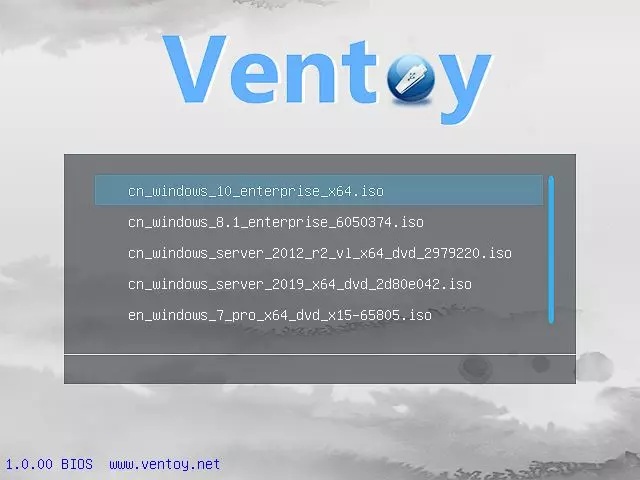
When you boot from the Ventoy USB, you will see a list of all the operating systems copied to the drive. Select the one you want to use, press “Enter,” and it will boot up automatically and normally, with all its features fully available.
When you want to remove an operating system, add a new one, or update an existing one, all you need to do is delete the old ISOs from the drive and copy the new ISOs onto the flash drive — nothing more.
What Systems Can I Boot from the USB
Ventoy currently supports more than 1100 different operating systems without any issues. Among them, all versions of Windows, from Windows 7 through the latest Windows 11. It also supports Unix systems, ChromeOS, and even alternative platforms such as VMware, Citrix, and Xen.
And, of course, Linux. Ventoy guarantees compatibility with more than 90% of the distros listed on Distrowatch, allowing you to boot all popular systems without issues — including Ubuntu, Debian, Mint, Fedora… and of course more obscure distros as well, making it a perfect tool for any experimenter.
It is also worth noting that the developers of this application have paid great attention to compatibility with different disk image formats. What this means in practice is that you will rarely encounter compatibility issues when adding operating systems from an image downloaded from the internet, for example.
The application natively supports multiple image formats out of the box, covering the most common file types used in this context. To give you a concrete idea, you can load files in ISO, WIM, IMG, VHD(x), and EFI formats — the most widely used formats today.