Microsoft Starts Adding Ads to the Windows 11 Start Menu — Here’s How to Disable Them
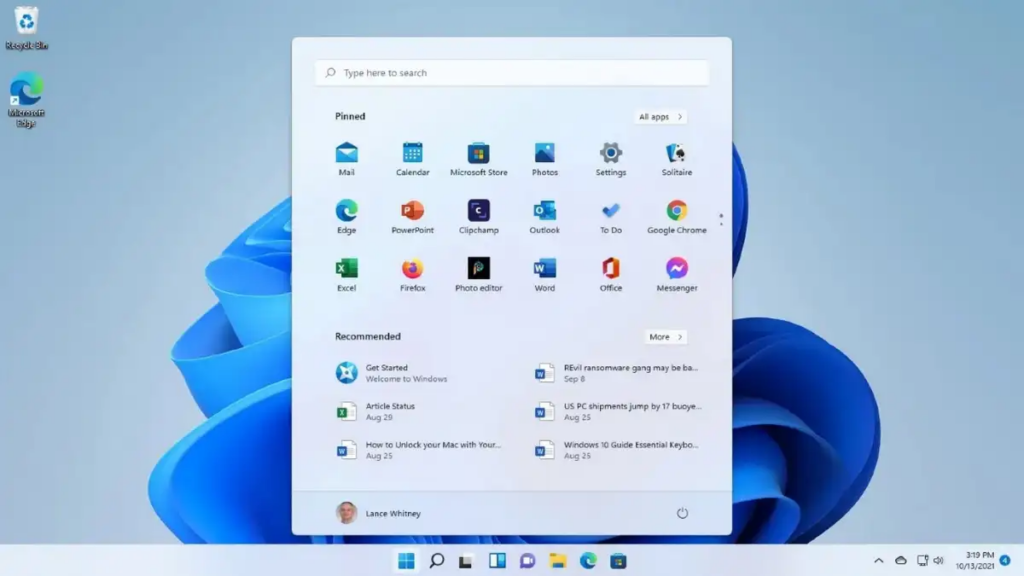
Microsoft has made good on its word and released an update that adds ads to Windows 11. Users who install it will start seeing promoted apps in the Start menu. The tech giant has rolled out an aggressive advertising-focused strategy aimed at boosting revenue — and whether you like it or not, it’s now part of the default Windows experience.
Update KB5036980, available for Windows 11 22H2 and 23H2 users, introduces a series of changes to the operating system. The most notable is the integration of ads in the form of recommended apps added to the Start menu. Clicking on them will redirect you to the Microsoft Store to download and install those apps.
Read also: How to Disable Startup Programs in Windows 11
What Exactly Changed with KB5036980
The update was first rolled out as an optional preview in late April 2024 before becoming a mandatory cumulative update on Patch Tuesday in May 2024. That means the vast majority of Windows 11 users eventually received it whether they actively chose to or not.
The ads show up in the Recommended section of the Start menu — the same area where Windows normally surfaces your recently opened files and newly installed apps. Microsoft populates this space with sponsored suggestions for third-party apps, games, and its own subscription services like Copilot Pro and Microsoft 365. The entries look deceptively similar to genuine recommendations, which is part of what makes them so frustrating to deal with.
What makes this rollout particularly notable is that it affects retail copies of Windows 11 — not just OEM machines pre-loaded with bloatware. Even if you bought a clean license and did a fresh install, you’re now getting ads. That’s a departure from how Microsoft has historically treated full-price customers.
Why Users Are Angry — And Rightly So
Windows 11 Home licenses start at around . Plenty of people paid that price with a reasonable expectation that they were buying software, not renting screen space back to advertisers. The backlash when KB5036980 went wide was swift and loud — forums, Reddit, and tech publications filled up with complaints almost immediately.
The core grievance isn’t just aesthetic. There are real usability problems:
- Accidental clicks: Promoted apps sit right alongside your genuine file history and recently used programs. It’s easy to click a sponsored entry when you meant to open something else.
- Privacy concerns: Microsoft frames these as personalized «recommendations,» which naturally raises the question of what data they’re drawing on to decide what to show you.
- Cognitive overhead: Having to mentally filter ads out of a functional OS interface adds friction to tasks you’ve been doing on autopilot for years.
- Trust erosion: When the «Recommended» section stops being trustworthy at face value, it loses its utility entirely for many users.
Microsoft eventually acknowledged the backlash. Subsequent updates described internally as delivering a «calmer» Windows experience dialed back some of the more aggressive promotions — fewer lock screen ads for Microsoft 365, fewer Start menu suggestions for Microsoft apps. But the underlying mechanism is still there, and it’s still on by default.
How to Turn Off Start Menu Ads in Windows 11
The good news is that disabling these ads is genuinely straightforward. Microsoft did at least have the decency to include a toggle for it, buried a couple of menus deep.
Method 1: Through Windows Settings (Easiest)
- Press Win + I to open Settings.
- Go to Personalization > Start.
- Find the toggle labeled «Show recommendations for tips, shortcuts, new apps, and more» and switch it off.
That’s it. The change takes effect immediately — no restart required. The Recommended section will go back to showing only your actual recently used files and apps.
Method 2: Registry Editor (Advanced Users)
If you’re managing multiple machines or just prefer working directly with the registry, this method gives you the same result:
- Press Win + R, type
regedit, and hit Enter. - Navigate to:
HKEY_CURRENT_USERSoftwareMicrosoftWindowsCurrentVersionExplorerAdvanced - Find the Start_IrisRecommendations value in the right pane and double-click it.
- Change the value data from 1 to 0 and click OK.
Method 3: Command Line (One-Liner)
For IT administrators or anyone who wants to script this across devices, you can run the following command in an elevated Command Prompt or PowerShell:
reg add HKCUSoftwareMicrosoftWindowsCurrentVersionExplorerAdvanced /v Start_IrisRecommendations /t REG_DWORD /d 0 /f
This writes the same registry value as Method 2 in a single command — handy if you’re deploying this via Group Policy or an RMM tool.
Other Windows 11 Ads You Might Want to Kill While You’re at It
The Start menu isn’t the only place Microsoft has been slipping in promotional content. While you have Settings open, it’s worth running through a few other toggles:
- Lock screen ads: Settings > Personalization > Lock Screen — turn off «Get fun facts, tips, tricks, and more on your lock screen.»
- Notification-style suggestions: Settings > System > Notifications — scroll down and disable «Offer suggestions on how I can set up my device» and «Get tips and suggestions when I use Windows.»
- File Explorer ads: Open File Explorer, click the three-dot menu > Options > View tab — uncheck «Show sync provider notifications.»
- Tailored experiences (ad targeting): Settings > Privacy & Security > Diagnostics & Feedback — turn off «Tailored experiences.»
None of these are outright harmful, but they add up. Taking five minutes to go through the list once leaves you with a noticeably cleaner experience.
What This Means Going Forward
Microsoft has been gradually testing the limits of how much advertising it can embed in Windows without triggering a mass exodus to alternatives. The KB5036980 rollout was one of the more visible tests of that threshold, and the backlash suggests they overshot — at least with the enthusiast and power-user crowd.
Whether casual users notice or care enough to act is a separate question. Most people never change their default settings, which means a significant portion of the Windows 11 user base is now running an OS that doubles as an ad platform, without ever knowing there’s an off switch.
For now, the fix is easy and free. The toggles work. But the fact that ads are enabled by default on a paid operating system is a precedent worth paying attention to — especially as Microsoft continues pushing its Copilot+ and Microsoft 365 services deeper into the Windows experience.
Preguntas Frecuentes
What Exactly Changed with KB5036980
The update was first rolled out as an optional preview in late April 2024 before becoming a mandatory cumulative update on Patch Tuesday in May 2024.
Why Users Are Angry — And Rightly So
Windows 11 Home licenses start at around .
How to Turn Off Start Menu Ads in Windows 11
The good news is that disabling these ads is genuinely straightforward.
Other Windows 11 Ads You Might Want to Kill While You’re at It
The Start menu isn’t the only place Microsoft has been slipping in promotional content.
What This Means Going Forward
Microsoft has been gradually testing the limits of how much advertising it can embed in Windows without triggering a mass exodus to alternatives.