Install ChatGPT as a Regular App on Windows
The ongoing growth of applications and platforms centered on Artificial Intelligence is gradually reaching all types of industries and users. As a result, a multitude of companies are rushing to develop their own projects in this space.
Perhaps one of the most representative examples in the sector is ChatGPT, an AI-powered chatbot that leverages several of OpenAI’s language models. Over the past few months, we’ve had the opportunity to explore some of the main features this platform has to offer. Furthermore, it’s worth keeping in mind that this is only the beginning.
Read also: Windows 11 Startup Takes Forever How to Speed Up
When we talk about ChatGPT, we’re actually referring to a web application that can be accessed from any web browser. At the same time, you may find yourself making heavy use of this Artificial Intelligence platform. For that reason, you may have considered at some point the possibility of running ChatGPT just like any other Windows application.
At this point, it’s important to know that there is no official Windows version that lets you use the platform as a native app. However, we can always turn to alternative solutions that make it possible, as we’ll walk through below.
Most of you probably know that Edge is the web browser that comes pre-installed by default on Windows. It includes a feature that allows you to install different websites as if they were standalone applications. As you might imagine, this lets us run certain pages as native Windows apps. As mentioned earlier, ChatGPT is only available as a web application — but we can install the chatbot’s website as a program on our computer.
Run ChatGPT as a Windows App with Edge
What this achieves is that its look and feel closely mirror those of the web version. The main difference is that you won’t see any browser-specific elements like bookmarks or tabs, and it will launch just like any other program. To accomplish this, the first step is to navigate to the ChatGPT website in the Edge browser, then sign in with your personal account credentials.
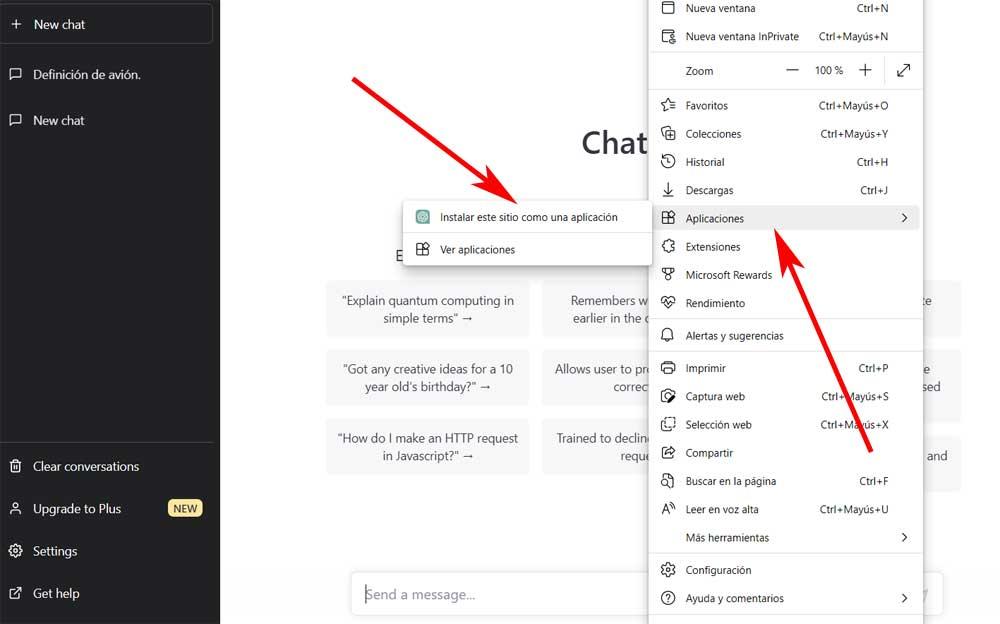
At that point, click the three-dot menu button to open the browser menu and go to Apps / Install this site as an app. A window will appear where you can specify the name for the new program. You’ll also have the option to set a custom icon to make the new ChatGPT application easier to find.
Perhaps one of the most interesting aspects here is that you’ll be able to pin the shortcut to the Windows taskbar. If it’s more convenient, the configuration screen for the new application also lets you pin it to the Windows Start menu or even create a shortcut on the desktop.
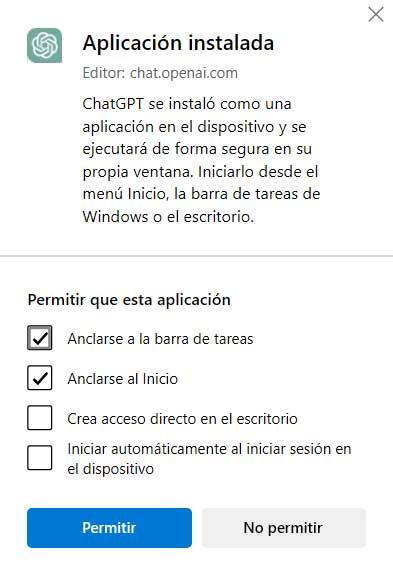
This way, you can search for and launch the application just like any other program installed on your Windows computer. So even if it’s not a truly native experience, you’ll be able to use this AI-powered tool as if it were a full-fledged application on your machine.
How to Install ChatGPT as a Desktop App on Windows
OpenAI now has an official Windows app available in the Microsoft Store, which is the cleanest option. Search for “ChatGPT” in the Store, install it, and you’re done — it behaves like a proper desktop application with its own window and taskbar icon.
If you’d rather not use the Store, the browser method still works. Open ChatGPT in Chrome or Edge, click the three dots in the top right, and look for “Install ChatGPT” or “Save and share → Install as app.” This creates a Progressive Web App (PWA) that runs in its own window, separate from your browser tabs.
The Difference Between the App and the Browser
The official app and the PWA behave almost identically — same features, same models, same conversations. The practical differences are minor: the app has slightly better keyboard shortcut integration and doesn’t share memory with your browser tabs, which matters on low-RAM machines. The PWA gets updated automatically whenever the web version updates, while the Store app has a separate update cycle.
Honestly, either works fine. The main reason to bother with any of this is that having ChatGPT as its own window — outside of your browser — makes it less likely you’ll close it accidentally when clearing tabs.
Tips for Daily Use
A few things that actually matter in practice: the keyboard shortcut Alt+Space opens the Quick Access overlay in the desktop app for fast one-off questions without switching windows. You can also set custom instructions in the settings to tell ChatGPT things about yourself once, so you don’t have to repeat them every conversation. And if you use it for writing tasks, the “memory” feature (if enabled in your account) means it starts learning your preferred style over time.
Frequently Asked Questions
Is the ChatGPT desktop app free?
Yes. The desktop app is free, just like the web version. A ChatGPT Plus subscription gives access to more advanced models in both the app and the web.
Does the ChatGPT app work offline?
No. ChatGPT requires an internet connection regardless of whether you use the app or the browser — all processing happens on OpenAI’s servers.
Is there a difference between the Microsoft Store app and installing it from the browser?
Minimal differences. Both run in their own window and have access to the same features. The Store app is slightly more integrated with Windows notifications.
Can I use multiple ChatGPT accounts in the desktop app?
No, the app only supports one account at a time. For multiple accounts, you’d need to use the browser.
Does installing ChatGPT as an app affect my privacy?
The privacy implications are the same as using the web version — your conversations may be used to improve OpenAI’s models unless you opt out in your account settings.