How to Use Dual Monitors on Windows 11
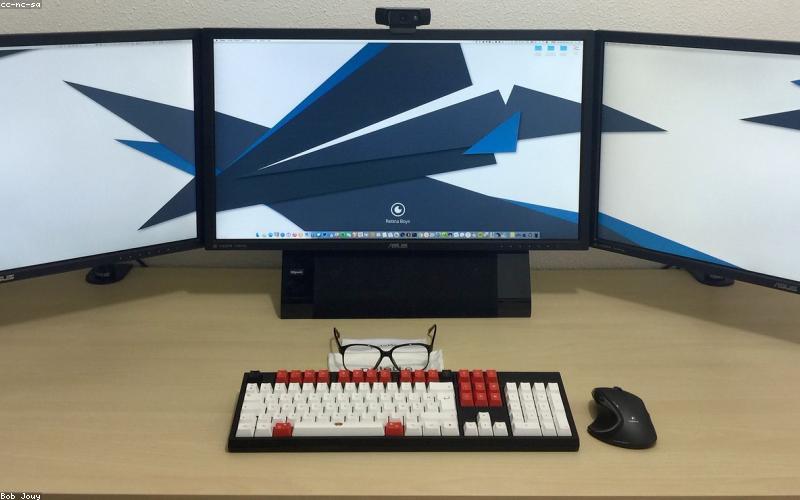
Dual monitors are one of the best productivity upgrades per dollar you can make. You don’t need expensive hardware — any modern monitor and a halfway decent graphics card are enough. Setting it up on Windows 11 is simpler than most people expect.
Connect the Second Monitor
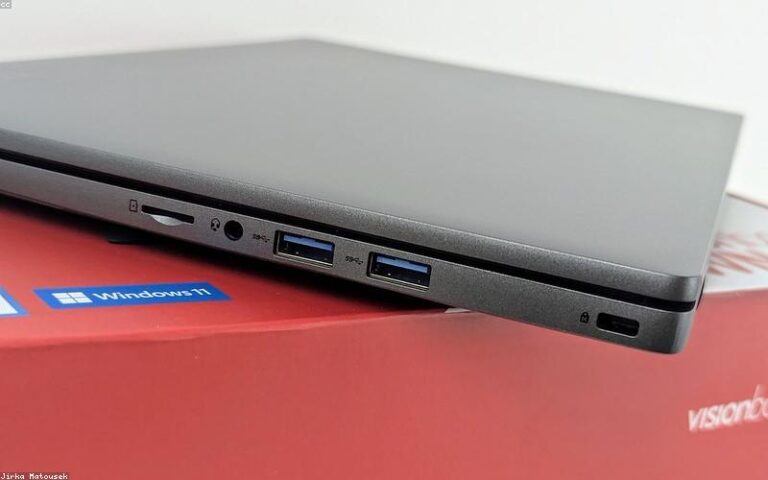
Connect the second monitor to your PC with the right cable (HDMI, DisplayPort, USB-C, or VGA depending on available ports). Windows 11 detects it automatically in most cases — if it doesn’t, press Win + P to open projection options and check whether a second display appears.
Read also: How to Use ChatGPT to Work Twice as Fast
If the monitor isn’t detected, try turning it off and back on with the cable connected, or use a different port on the PC. HDMI-to-DisplayPort adapters and similar sometimes require a restart to be recognized.
Set Up the Monitor Layout
Go to Settings → System → Display. You’ll see a visual representation of numbered monitors. Drag them to reflect their physical position — if your second monitor is to the right of the primary, drag it to the right in this interface. This setting defines how the mouse moves between screens.
Click “Identify” if you’re not sure which is 1 and which is 2 — the number appears large on each screen for a few seconds.
Display Modes (Win + P)
Press Win + P to choose how the second monitor is used:
- PC screen only: only the primary monitor is active
- Duplicate: both screens show the same thing — useful for presentations
- Extend: the desktop spans across both monitors (the most productive mode)
- Second screen only: only the secondary monitor is active
Extend is the mode you want for daily work — you get a massive desktop spanning both screens and can place different windows on each monitor.
Adjust Resolution and Scaling
In Settings → System → Display, select each monitor individually to adjust its resolution and scaling. If the monitors have different sizes or pixel densities, you’ll likely need different scale percentages so text appears the same visual size on both.
Windows automatically recommends the optimal resolution for each monitor. Accepting the recommendation is correct in most cases.
Taskbar on Both Monitors
By default, Windows 11 shows the taskbar only on the primary monitor. To enable it on the secondary too: Settings → Personalization → Taskbar → Taskbar behaviors → enable “Show my taskbar on all displays.”
You can also choose whether the secondary monitor’s taskbar shows only the windows on that monitor, or all open windows.
Different Wallpaper on Each Monitor
Right-click the desktop → Personalize → Background. Choose an image, then right-click the image → “Set for monitor 1” or “Set for monitor 2.” You can also set different slideshows for each monitor.
Frequently Asked Questions
Can I use monitors with different resolutions and sizes?
Yes, no problem. Windows 11 handles differences in resolution and pixel density between monitors well. You’ll just need to adjust the scaling of each screen individually so text appears at a similar visual size on both.
Does my graphics card support two monitors?
Most modern graphics cards (even integrated ones) support at least two simultaneous video outputs. Check the specs or just connect the second monitor — if Windows detects it, it’s supported.
Can I have one monitor horizontal and one vertical?
Yes. In Settings → System → Display, select the monitor and change “Display orientation” to Portrait. This is useful for reading long documents or code on a secondary monitor.
How do I move a window from one monitor to the other?
Drag it to the edge of the current monitor, or use the Win + Shift + Left/Right arrow shortcut to move the active window to the other monitor without resizing it.
Can I set different refresh rates for each monitor?
Yes. In Settings → System → Display → Advanced display, you can set the refresh rate independently for each monitor. Use the native refresh rate of each display for best results.