Configure and Customize Windows 11
There are several tricks that many people are unaware of that could help you configure certain parts of Windows 11 to your liking, giving your operating system a distinct and distinctive touch.
With Windows 11, we take an evolutionary leap in every sense — this is quite possibly the most changed version of Microsoft’s operating system that we have seen to date.
In that regard, those who wanted a change will not have been disappointed, although there have been users who expected the evolution to be even greater.
VIDEO
If you want more privacy in Windows 11, here is how to configure it
0 seconds of 8 minutes, 55 secondsVolume 90%
But those users may not know that Windows 11 is packed with tricks that we can take advantage of to make the system feel closer to what we actually want.
Let’s look at some of the best ones so we can experiment with them and make Windows 11 a system that is truer to what we truly expect.
Move the Start Button to the Left
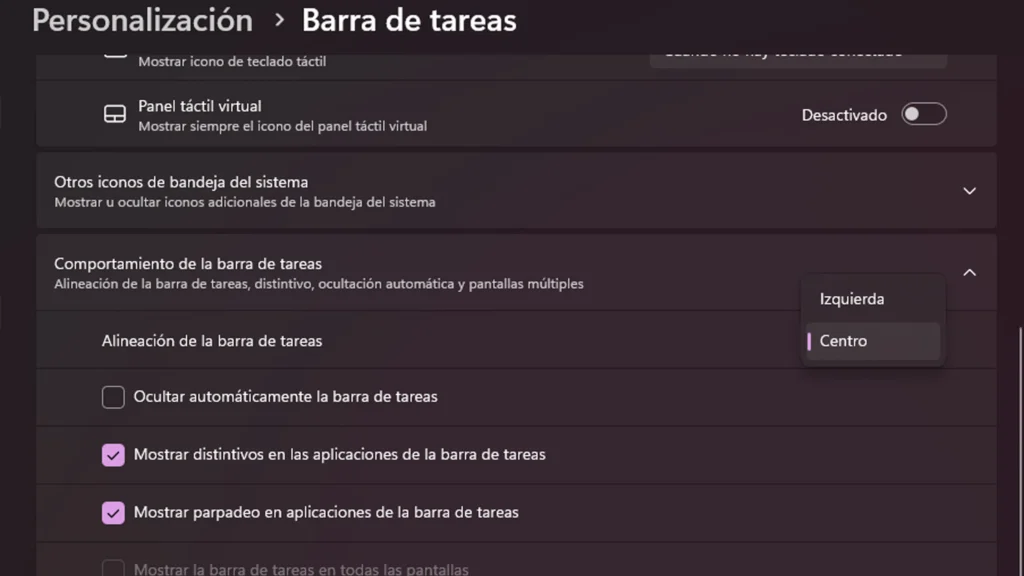
The Start button is now positioned more toward the center of the taskbar, which has not pleased all users who were accustomed to its traditional placement on the left side of the screen. For those who want to change it back, here is how:
- Right-click on the taskbar and open Taskbar Settings.
- Select the Taskbar Behaviors dropdown menu and change the Taskbar Alignment to the left. It’s that simple.
Quick Settings Panel
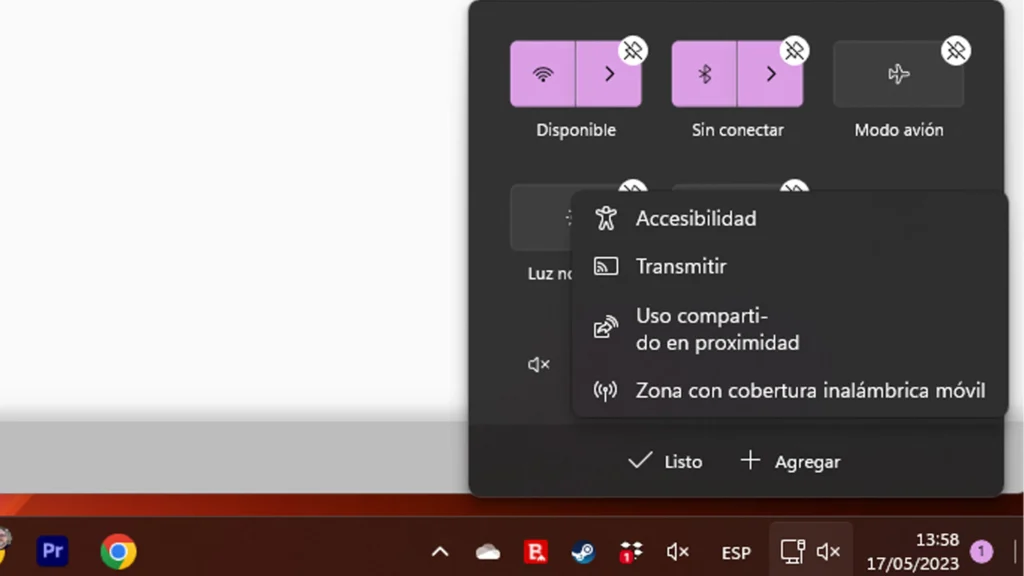
Windows 11 has a Quick Settings panel that can be customized. Here is how to do it:
- Click on the taskbar area that contains the WiFi, speaker, and battery icons.
- Open the Settings Menu.
- To add or remove settings buttons, click the Edit button (pencil icon).
- Then click Add and incorporate whatever you want.
- When finished, click Done.
Multiple Desktops
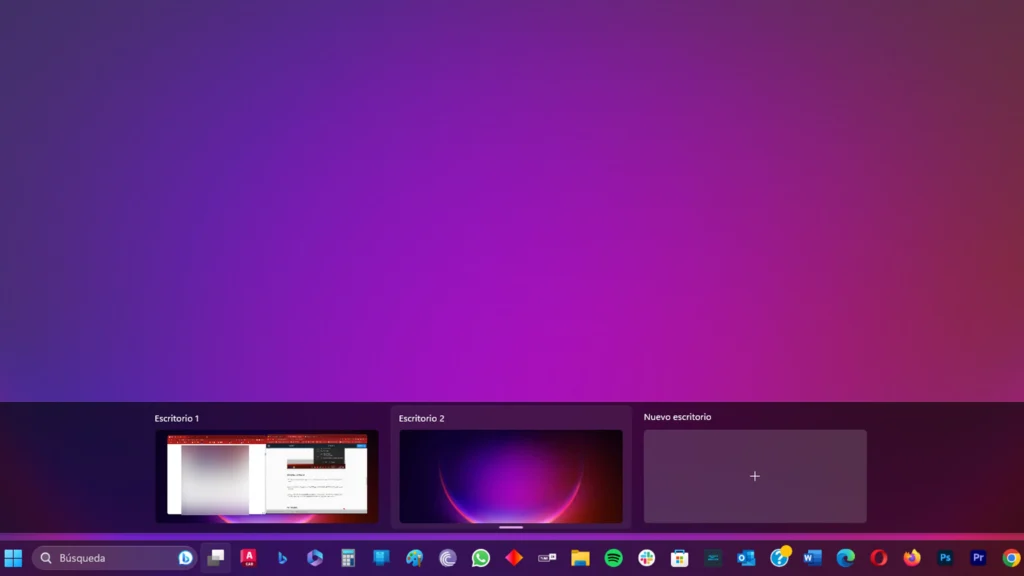
Microsoft has replaced the old Task View button with a redesigned icon in the taskbar. Thanks to this new addition, you can manage and create new virtual desktops and switch between them.
Simply hover your cursor over this icon (located just to the right of the taskbar search) to see your open virtual desktops or create a new one.
Widgets
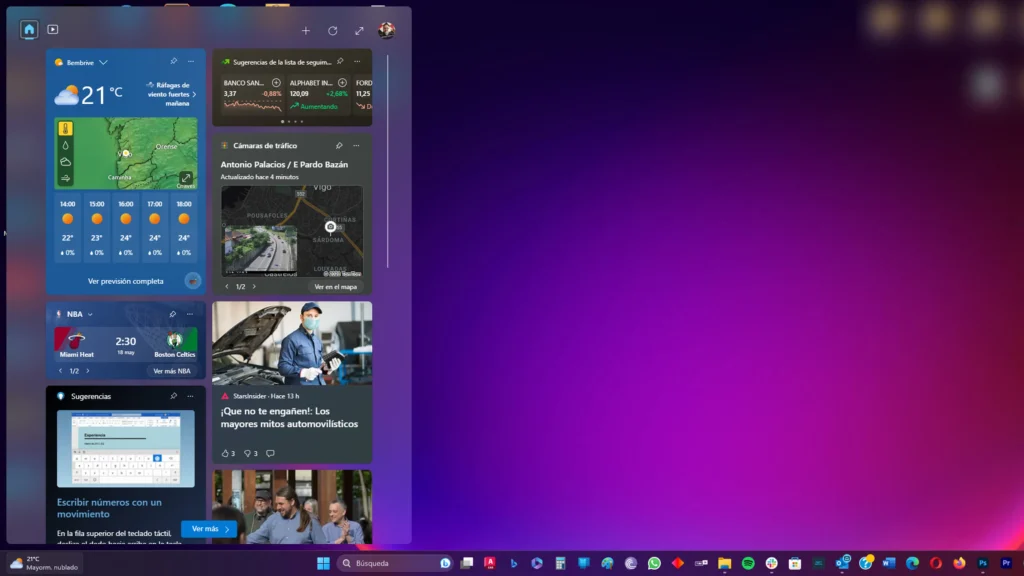
Windows 10 was the version where widgets first appeared, but it is in Windows 11 where they are being refined — though there is still a long way to go.
If you want to check the weather, look up sports scores, track the prices of specific stocks, monitor nearby traffic, manage your Outlook calendar, check off tasks from your to-do list, or read the latest news, you will enjoy the Widgets section.
Widgets can be customized, but they are still somewhat limited — mainly because there are very few from third-party companies, aside from Spotify and Facebook Messenger, among a few others.
Once we have the freedom to install any widget we want, this section could become truly spectacular.
Snap Layouts
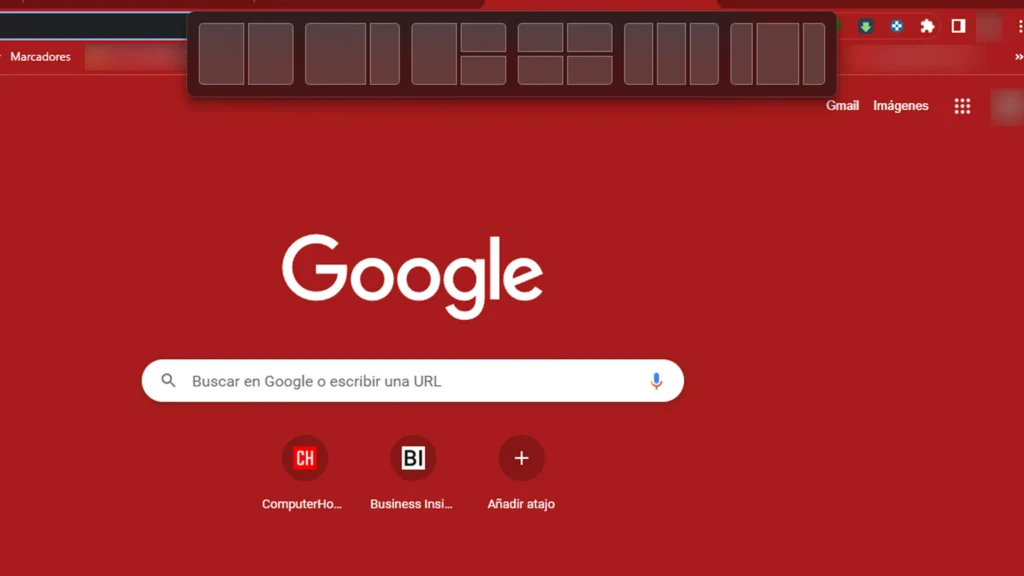
Microsoft added a feature for snapping open windows from different applications — a concept seen in previous versions, but significantly more refined here.
There is a floating menu above the Maximize button that offers layout options: a large window on the left and two stacked on the right, or three in a row, for example — but there are even more options available.
More Tabs in File Explorer
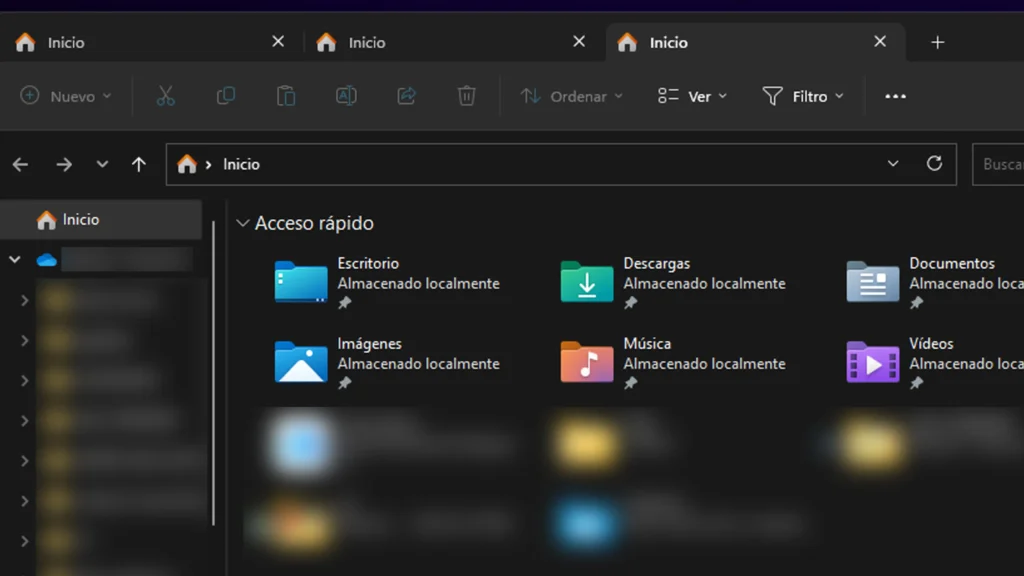
One addition that arrived with the Windows 11 22H2 update is that File Explorer finally gets tabs — a feature that users have been requesting for years.
Having tabs saves you from having to open multiple File Explorer windows when you need to view more than one location at a time, though if needed, you can still do it the old way.
Now you simply right-click on a folder and choose Open in new tab, just as you would in a web browser. You can also click the + next to the main window.
The App List
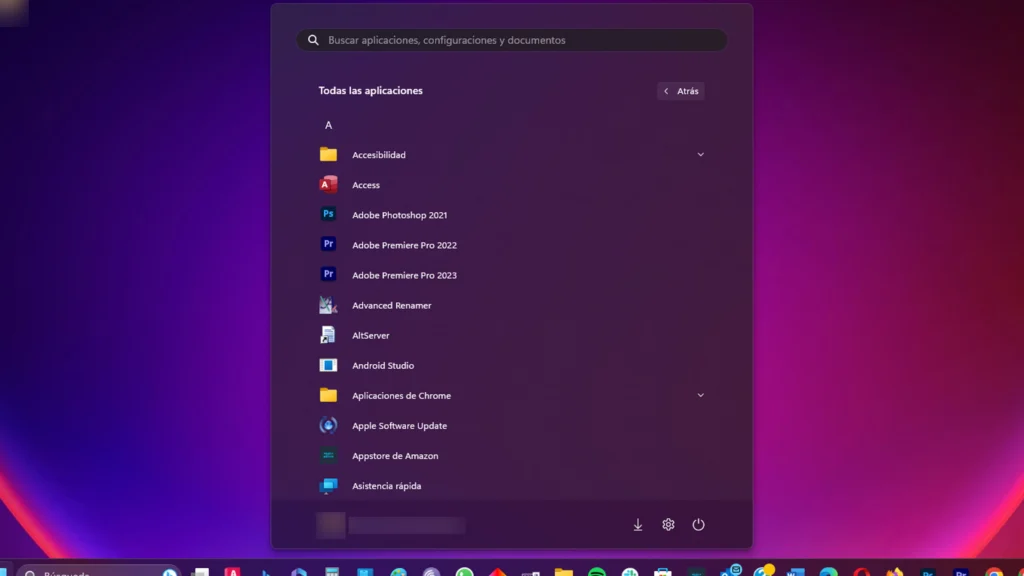
With Windows 11, you will need to take one extra step to see the full list of installed applications.
Click the Start menu button and you will see that above the pinned icons (on the right side) there is an option labeled All apps. That is exactly where you need to click to view all your applications listed in alphabetical order.
Pinning Applications
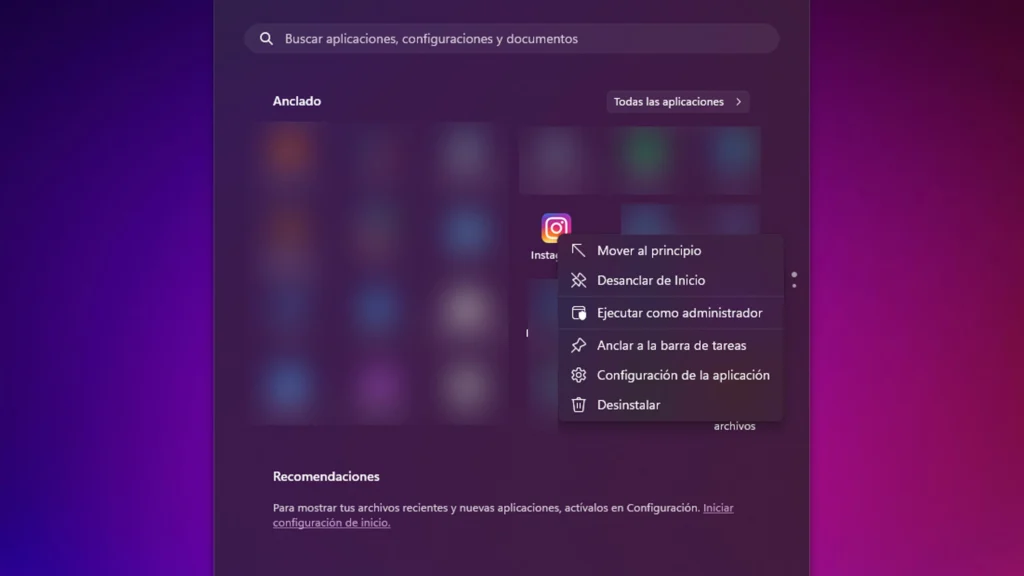
The Windows 11 Start menu allows you to pin applications for quicker access. To pin an app of your choice, follow these steps:
- Open the app list.
- Right-click on an application you want and select Pin to Start to add it to the Start menu.
- You can then drag the application wherever you like — further to the right or to the left.
- To remove pinned apps, right-click and choose Unpin from Start.
Customize the Start Menu
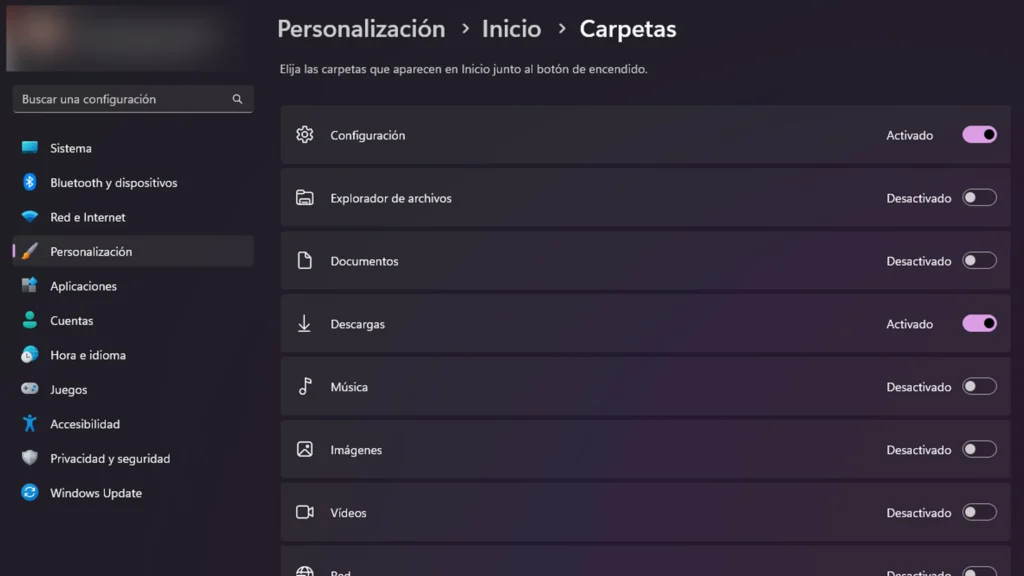
If the Start menu does not suit you, there are still things you can change. To customize it, go to Settings > Personalization > Start > Folders.
Here, you can also reposition the Settings button, add File Explorer, as well as other common folders and network icons.
Change the Windows 11 Theme
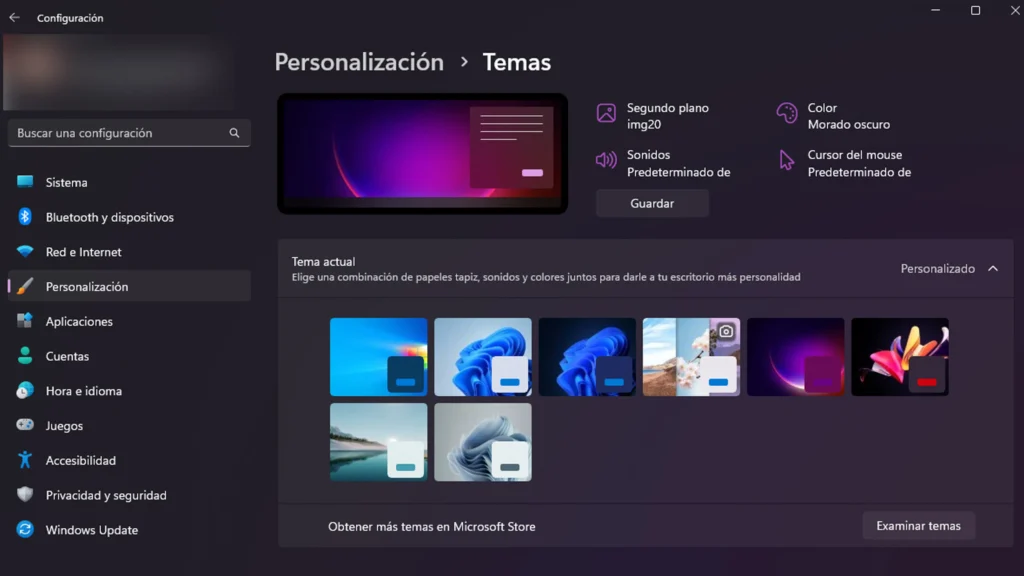
Various themes are available in Windows 11, including options tied to dark mode for those who prefer it.
Go to Settings > Personalization and select one of the default themes to change the wallpaper, sounds, cursor, accent color, and overall color scheme.
You can click Browse themes to visit the Microsoft Store and download additional themes you like. There are both free and paid options.
Windows 11 Keyboard Shortcuts
Windows 11 has a number of very useful keyboard shortcuts that will help you navigate the system. Some of the most common ones are:
- Ctrl + X: Cut the selected item.
- Ctrl + C (or Ctrl + Insert): Copy the selected item.
- Ctrl + V (or Shift + Insert): Paste the selected item.
- Ctrl + Z: Undo an action.
- Alt + Tab: Switch between open applications.
- Alt + F4: Close the active item or exit the active application.
- Windows logo key + L: Lock the computer.
- Windows logo key + D: Show and hide the desktop.
- F2: Rename the selected item.
- F3: Search for a file or folder in File Explorer.
- F4: Display the address bar list in File Explorer.
- F5: Refresh the active window.
- F6: Cycle through screen elements in a window or on the desktop.
- F10: Activate the menu bar in the active application.
- Alt + F8: Show your password on the sign-in screen.
- Alt + Esc: Cycle through items in the order in which they were opened.
- Alt + underlined letter: Perform the command corresponding to that letter.
- Alt + Enter: Display properties for the selected item.
- Alt + Spacebar: Open the shortcut menu for the active window.
- Alt + Left arrow: Go back.
- Alt + Right arrow: Go forward.
- Alt + Page Up: Move up one screen.
- Alt + Page Down: Move down one screen.
- Ctrl + F4: Close the active document (in apps that are open in full screen and allow you to have multiple documents open simultaneously).
- Ctrl + A: Select all items in a document or window.
- Ctrl + D (or Delete): Delete the selected item and move it to the Recycle Bin.
- Ctrl + R (or F5): Refresh the active window.
- Ctrl + Y: Redo an action.
- Ctrl + Right arrow: Move the cursor to the beginning of the next word.
- Ctrl + Left arrow: Move the cursor to the beginning of the previous word.
- Ctrl + Down arrow: Move the cursor to the beginning of the next paragraph.
- Ctrl + Up arrow: Move the cursor to the beginning of the previous paragraph.
- Ctrl + Alt + Tab: Use the arrow keys to switch between all open applications.
- Alt + Shift + arrow keys: When a group or tile has focus in the Start menu, move it in the specified direction.
- Ctrl + Shift + arrow keys: When a tile has focus in the Start menu, move it to another tile to create a folder.
- Ctrl + arrow keys: Resize the Start menu when it is open.
- Ctrl + arrow key (to move to an item) + Spacebar: Select multiple individual items in a window or on the desktop.
- Ctrl + Shift with an arrow key: Select a block of text.
- Ctrl + Esc: Open Start.
- Ctrl + Shift + Esc: Open Task Manager.
- Ctrl + Shift: Switch the keyboard layout when multiple keyboard layouts are available.
- Ctrl + Spacebar: Turn the Chinese Input Method Editor (IME) on or off.
- Shift + F10: Display the shortcut menu for the selected item.
- Shift with any arrow key: Select multiple items in a window or on the desktop, or select text within a document.
- Shift + Delete: Delete the selected item without moving it to the Recycle Bin.
- Right arrow: Open the next menu to the right, or open a submenu.
- Left arrow: Open the next menu to the left, or close a submenu.
- Esc: Stop or exit the current task.
- PrtScn: Take a screenshot of the entire screen and copy it to the Clipboard.
Now you know how to further customize the new version of Microsoft’s operating system and make it your own.
With these tips, we can get a Windows 11 that is closer to what we actually need and that we can make the most of.