
balenaEtcher: Another Way to Flash Images to USB Drives and SD Cards
When it comes to writing ISO images to USB drives, memory cards, and removable disks, our go-to tool has always been Rufus. Its advanced profile lets us fine-tune various configuration parameters and even modify the latest versions of Windows. However, that same advanced profile isn’t entirely suitable for most users — and that’s exactly where balenaEtcher comes in. With a clean interface and a straightforward three-step process, balenaEtcher aims to simplify flashing down to its absolute minimum.
Writing operating system images to USB drives and memory cards isn’t something reserved exclusively for advanced users or maintenance sessions. Many devices require this process just to function at a basic level — Raspberry Pi and other similar single-board computers being a prime example. Beyond the official solutions available, it’s always a good idea to have alternatives on hand in case something goes wrong, and that’s what brings us to balenaEtcher, originally known simply as Etcher.
How to Flash Operating Systems to USB Drives and SD Cards with balenaEtcher
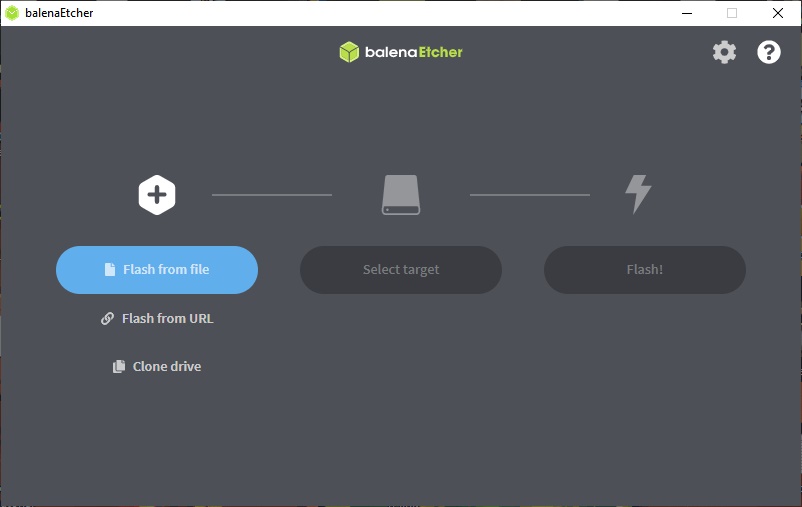
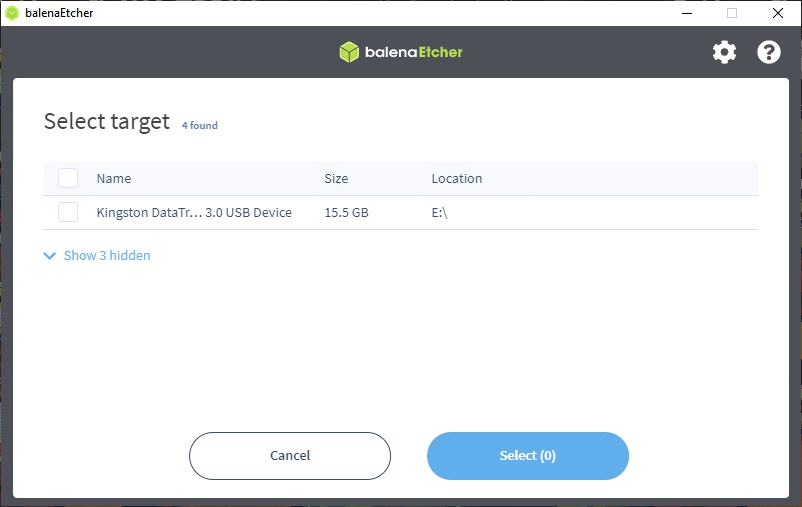
balenaEtcher is available for Windows, Linux, and macOS. Personally, I recommend downloading the portable Windows build, which has no major dependencies. The first step is essentially an action hub: you can write an image from a local file, do the same from a URL, or clone drives. Next, you select the target drive that will receive the data. balenaEtcher automatically hides hard drives and other system volumes, keeping the risk of accidentally wiping important files very low.
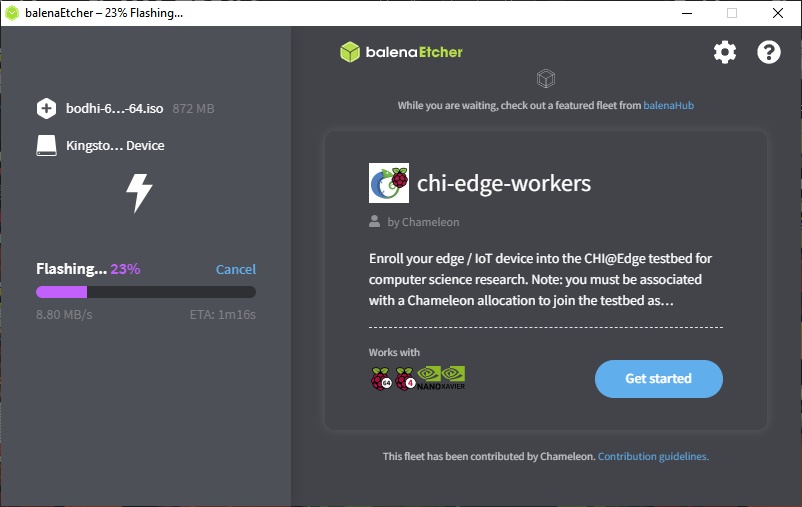
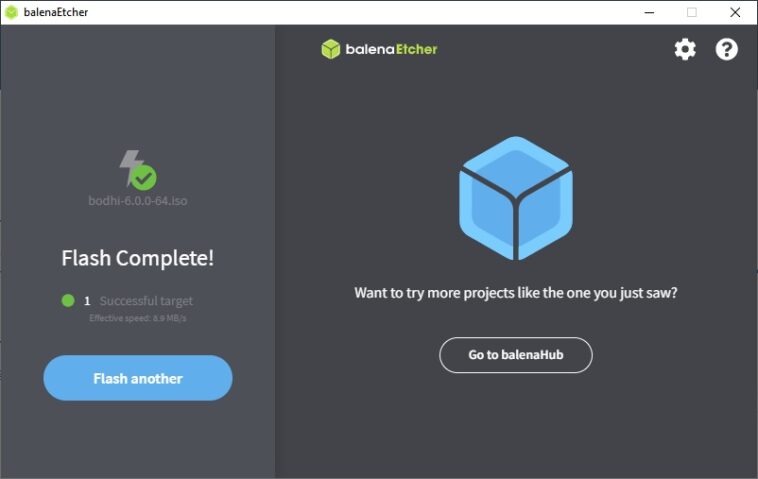
Finally, we reach the actual flash phase. balenaEtcher may prompt for permission to run commands in the Windows console, but this is simply to wipe any existing partitions on the USB drive. The rest depends on how large the image is and the natural speed of the target device.
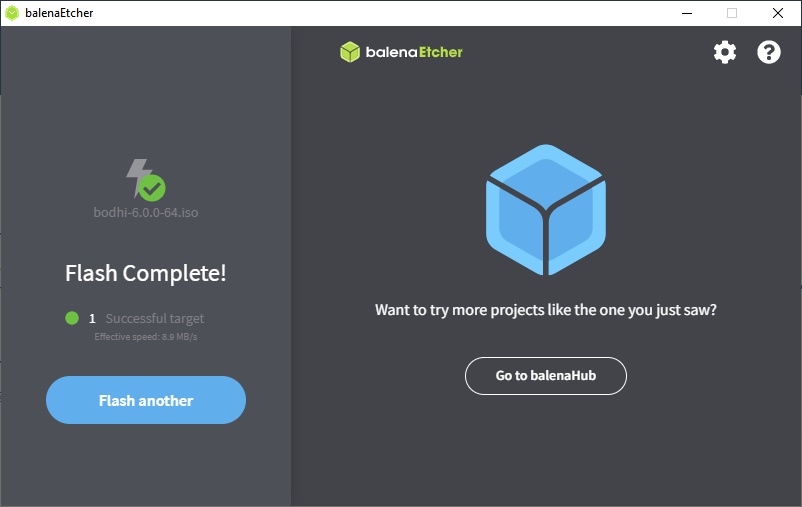
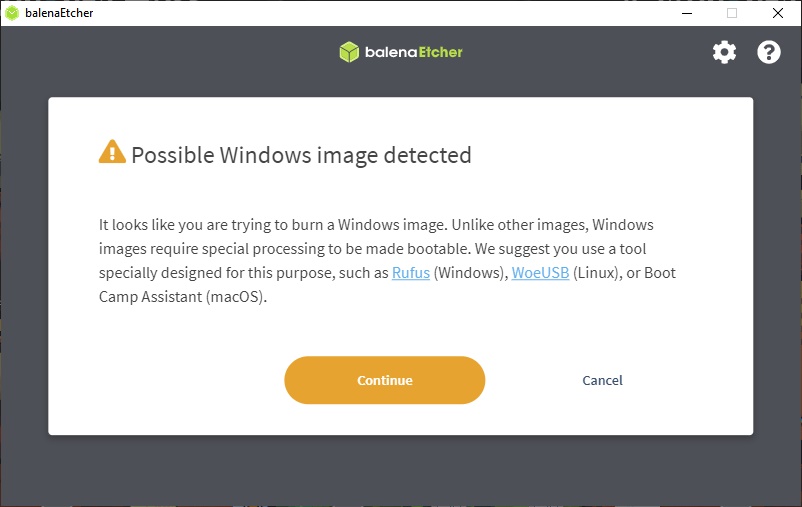
Now, balenaEtcher is very easy to use, but that doesn’t make it 100% suitable for every situation. The app warns that Windows images require special handling and may result in an incorrect flash, so it directly suggests using Rufus or a similar tool instead. Another possibility is that the image simply isn’t compatible. For example, flashing Bodhi Linux completes without errors, but upon inspecting the contents of the USB drive, all I found was free space.