Google Chrome’s RAM Memory Saving Feature
One of the long-standing issues with Google Chrome has been its high RAM consumption when users open many tabs at once. This is one of the main reasons computers slow down when working with this browser, and one of the areas that alternative browsers — without much success — try to solve and market to their users. Every so often, we see Google experimenting with new ways to drastically reduce RAM usage on the computer. One of the latest developments in this regard is the new Memory Saver mode.
Google Chrome’s Memory Saver mode is a new experimental feature being tested by Google, which promises to free up as much RAM as possible while working on the computer. To do this, the browser monitors all inactive tabs and, when it detects that one of them is not being used, it removes it directly from memory to free up as many resources as possible. This way, Google Chrome can browse quickly and smoothly without any issues, ensuring the best possible performance. And when the user returns to a suspended tab, it reloads automatically without requiring any action.
In addition to saving RAM, this new feature also helps save battery life on laptops, as it reduces their workload and helps extend battery life to the maximum.
This feature is disabled by default in the browser. However, by following a few simple steps, it is very easy to enable it and start enjoying its benefits. Let’s take a look at how it works.
Enabling the Memory Saver Feature
You can easily enable this memory saving feature by typing the following into the address bar:
chrome://flags/#high-efficiency-mode-available
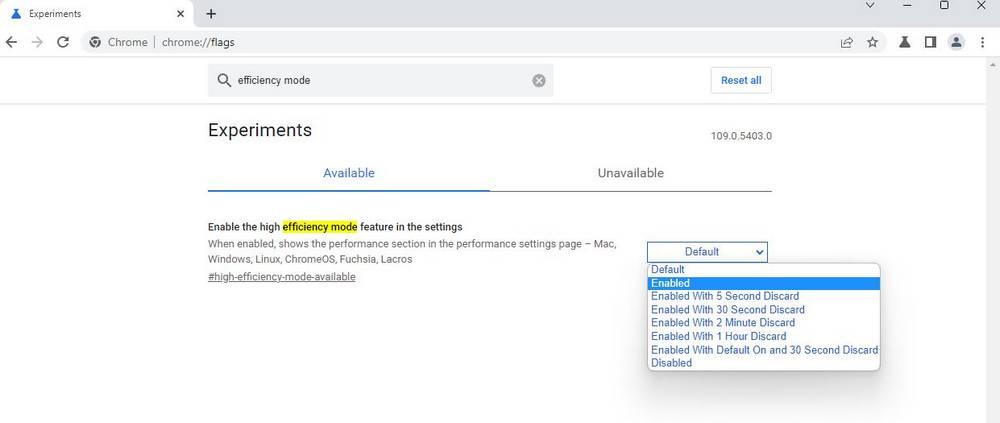
Once the flag, or experimental feature, is enabled, the next step is to restart the browser for the changes to take effect. When Chrome restarts, you can start using this new feature — but first you’ll need to activate it. Go to the browser’s settings and you will see a new Performance section. Select it and enable the feature there.
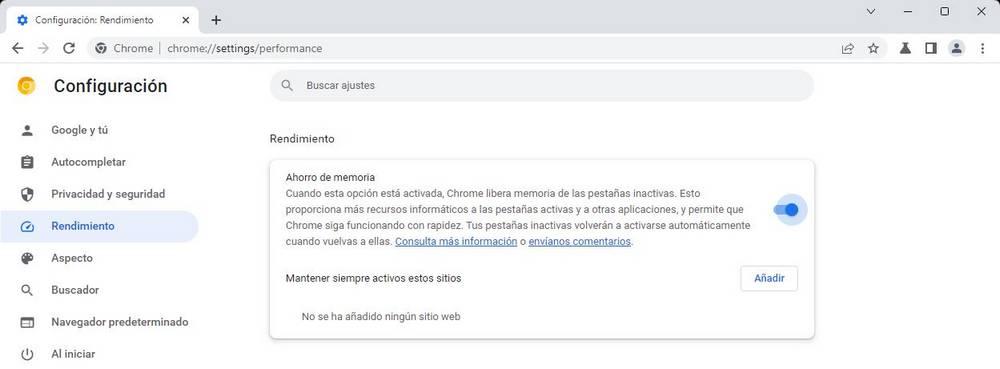
You can also add websites that you do not want to be suspended automatically, so they remain loaded in memory at all times.
When a site is freed up, you will see a new icon in the address bar. Clicking on it will display a message indicating that Chrome has sped things up by releasing the page’s resources and that, upon returning to it, the page has been reloaded.
This way, when browsing the web with many tabs open that are no longer needed, you can let Chrome discard them and free up their memory, automatically recovering them when you go back to use them.