Linux Password Reset Without Bootable Media
Forgetting the root or user password on a Linux machine is not the disaster it seems. If you have physical access to the console, you can reset the password directly from the bootloader without any rescue USB or installation media. This guide covers the GRUB single-user method and the systemd emergency approach.
Reset via GRUB and init=/bin/bash
The most universal method works by telling the kernel to launch a shell instead of the normal init system, giving you a root prompt before any password is requested.
Read also: How to Increase Linux Swap Space
- Reboot the machine. At the GRUB menu, highlight your default entry and press e to edit it.
- Find the line beginning with linux (or
linux16on older systems). Scroll to the end of that line. - Append init=/bin/bash. On some distributions you should also add
rwso the root filesystem mounts writable, and removequiet splashto see boot messages. - Press Ctrl+X or F10 to boot with these temporary settings.
You will land at a root shell. If the filesystem is read-only, remount it writable first:
mount -o remount,rw /
Change the Password and Reboot Safely
With a writable root filesystem you can now reset any account:
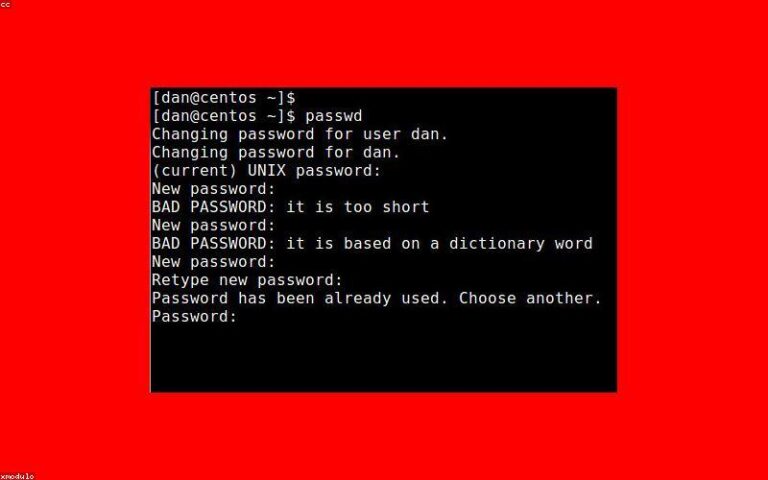
- passwd root to reset the root password, or passwd username for a regular user.
- Type the new password twice when prompted.
Do not use the normal reboot command here, because you bypassed the init system and it may not handle shutdown cleanly. Instead, sync and force a reboot:
exec /sbin/init
Or, if that hangs, use mount -o remount,ro / followed by reboot -f. If your system uses SELinux (Fedora, RHEL, CentOS), create the file /.autorelabel with touch /.autorelabel before rebooting, otherwise the changed shadow file may cause login failures due to a context mismatch.
Using systemd Emergency or Rescue Mode
On systemd distributions you can append systemd.unit=rescue.target or emergency.target instead of init=/bin/bash. Rescue mode usually still asks for the root password, so it only helps if you know it. The init=/bin/bash approach is preferred precisely because it skips authentication.
Some modern distributions ship a dedicated recovery entry in the GRUB submenu labeled Advanced options. That entry drops you into a maintenance shell, but again it typically requires the existing root password, so it is not a true reset method when the password is lost.
When the Bootloader Is Locked Down
This entire technique depends on being able to edit the GRUB entry. Hardened systems block it in several ways, and recognizing them helps you understand the security tradeoffs:
- GRUB password protection requires a password before editing menu entries.
- Encrypted disks (LUKS) require the passphrase before the root filesystem is even readable, so a single-user shell cannot reach the shadow file without it.
- UEFI Secure Boot plus a firmware password can prevent unauthorized boot parameter changes.
If these protections are in place and you do not have the relevant secrets, password reset without media is genuinely impossible by design. That is the point of those controls.
Frequently Asked Questions
Does this method work on encrypted drives?
Only if you know the disk encryption passphrase. With LUKS full-disk encryption, the root filesystem is unreadable until you unlock it, so you cannot reach the password files without the encryption key. The boot edit alone is not enough.
Why does my login still fail after resetting the password?
The most common cause is SELinux on Fedora or RHEL relabeling. Run touch /.autorelabel before rebooting so the system fixes the security context of the modified shadow file. A read-only filesystem during the edit can also silently prevent the change from saving.
Is editing GRUB to get a root shell a security hole?
Yes, which is why it works. Anyone with physical console access can reset passwords this way unless you add a GRUB password, encrypt the disk, and set a firmware password. Physical access is effectively root access on an unhardened machine.
What if there is no GRUB menu shown at boot?
Hold Shift (BIOS systems) or press Esc repeatedly (UEFI systems) right after powering on to force the menu to appear. Many distributions hide it by default when only one OS is installed.