Windows 11 RAM Usage Too High: Complete Fix Guide
High RAM usage in Windows 11 is normal up to a point: the system deliberately caches data in memory to keep things fast. It only becomes a problem when usage stays near 100%, apps start swapping to disk, and the PC slows or freezes. This guide shows how to find the cause and bring memory usage back under control.
Identify What Is Eating Your Memory
Start by measuring before you change anything. Open Task Manager with Ctrl + Shift + Esc.
Read also: Linux for Beginners Essential Commands You Need
- On the Processes tab, click the Memory column to sort by usage and note the top consumers.
- On the Performance tab, click Memory to see total usage, how much is cached, and your committed memory.
Browsers (especially with many tabs), Microsoft Teams, and creative apps are typical heavy users. If a process you do not recognize uses huge amounts of memory and keeps growing, note its name for a closer look.
Close Background Apps and Trim Startup
Many apps keep running and holding memory even after you close their window.
Stop background apps
Go to Settings > Apps > Installed apps, click the three dots beside an app, choose Advanced options, and set Let this app run in the background to Never.
Reduce startup load
In Task Manager > Startup apps, disable high-impact programs you do not need at login. Fewer startup apps means more free memory from the moment you sign in.
Fix Memory Leaks and Heavy Processes
A memory leak is when an app keeps grabbing RAM without releasing it, climbing steadily over hours.
- Restart the offending app as an immediate fix, and update it, since leaks are usually patched in newer versions.
- Update Windows at
Settings > Windows Update; some leaks come from system components. - If Service Host processes such as SysMain consume a lot, you can disable the SysMain (Superfetch) service via
services.msc, though this can slow app launches on hard drives, so test the effect.
For browsers, enable built-in memory savers (Edge’s Efficiency mode, Chrome’s Memory Saver) and use fewer extensions.
Tune Visual Effects and the Page File
Windows uses a page file on disk as overflow when RAM fills. If you see warnings about low memory while RAM still has room, your page file may be too small.
- Search Adjust the appearance and performance of Windows.
- Under the Advanced tab, click Change beside Virtual memory.
- Leave Automatically manage paging file size ticked for most users; only set a custom size if you have a specific reason.
On the Visual Effects tab, choosing Adjust for best performance frees a small amount of memory used by animations and transparency, which helps on low-RAM systems.
Scan for Malware and Consider More RAM
Unexplained, persistent high memory usage can be malware mining or running hidden tasks. Run a full scan with Windows Security > Virus & threat protection > Scan options > Full scan.
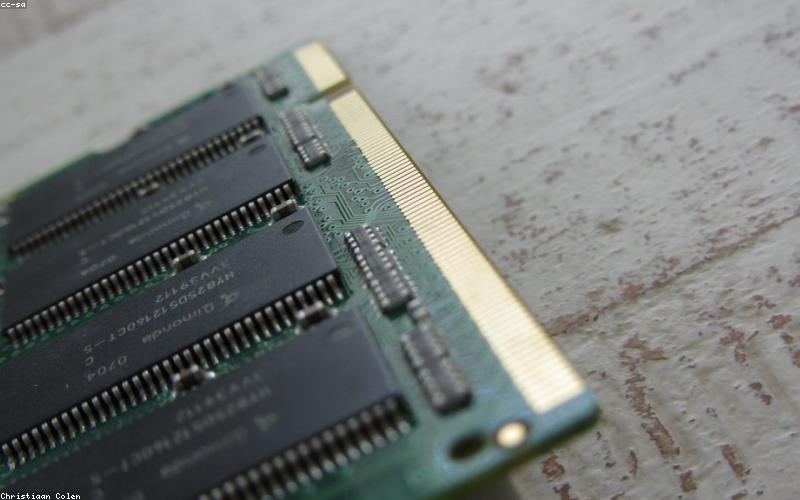
If you have done everything above and still run out of memory during normal work, the honest answer is that you need more RAM. For Windows 11, 8 GB is the practical minimum, 16 GB is comfortable for multitasking and browsing, and 32 GB suits heavy creative or development workloads.
Frequently Asked Questions
Is high RAM usage in Windows 11 bad?
Not by itself. Windows intentionally caches data in unused RAM to stay fast, so seeing 60-80% used is normal. It becomes a problem only when usage stays near 100% and the system slows down or apps swap to disk.
How do I find a memory leak in Windows 11?
Sort Task Manager’s Processes tab by Memory and watch over time. A process whose memory keeps climbing without leveling off, even when idle, is leaking. Restart and update that app, and install Windows updates.
Should I disable SysMain (Superfetch) to reduce RAM usage?
You can, via services.msc, if SysMain is consistently consuming a lot of memory. On SSDs the impact of disabling it is minimal, but on hard drives it can slow app launches, so test before keeping it off.
How much RAM do I need for Windows 11?
8 GB is the practical minimum, 16 GB is comfortable for everyday multitasking and many browser tabs, and 32 GB is recommended for video editing, virtual machines, or development work.