
Install ChatGPT as a Regular App on Windows
The ongoing growth of applications and platforms centered on Artificial Intelligence is gradually reaching all types of industries and users. As a result, a multitude of companies are rushing to develop their own projects in this space.
Perhaps one of the most representative examples in the sector is ChatGPT, an AI-powered chatbot that leverages several of OpenAI’s language models. Over the past few months, we’ve had the opportunity to explore some of the main features this platform has to offer. Furthermore, it’s worth keeping in mind that this is only the beginning.
When we talk about ChatGPT, we’re actually referring to a web application that can be accessed from any web browser. At the same time, you may find yourself making heavy use of this Artificial Intelligence platform. For that reason, you may have considered at some point the possibility of running ChatGPT just like any other Windows application.
At this point, it’s important to know that there is no official Windows version that lets you use the platform as a native app. However, we can always turn to alternative solutions that make it possible, as we’ll walk through below.
Most of you probably know that Edge is the web browser that comes pre-installed by default on Windows. It includes a feature that allows you to install different websites as if they were standalone applications. As you might imagine, this lets us run certain pages as native Windows apps. As mentioned earlier, ChatGPT is only available as a web application — but we can install the chatbot’s website as a program on our computer.
Run ChatGPT as a Windows App with Edge
What this achieves is that its look and feel closely mirror those of the web version. The main difference is that you won’t see any browser-specific elements like bookmarks or tabs, and it will launch just like any other program. To accomplish this, the first step is to navigate to the ChatGPT website in the Edge browser, then sign in with your personal account credentials.
At that point, click the three-dot menu button to open the browser menu and go to Apps / Install this site as an app. A window will appear where you can specify the name for the new program. You’ll also have the option to set a custom icon to make the new ChatGPT application easier to find.

Perhaps one of the most interesting aspects here is that you’ll be able to pin the shortcut to the Windows taskbar. If it’s more convenient, the configuration screen for the new application also lets you pin it to the Windows Start menu or even create a shortcut on the desktop.
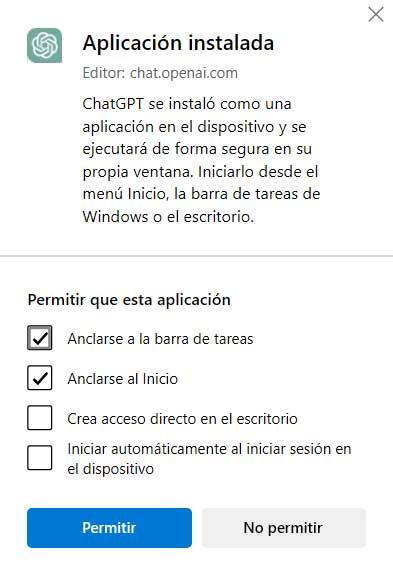
This way, you can search for and launch the application just like any other program installed on your Windows computer. So even if it’s not a truly native experience, you’ll be able to use this AI-powered tool as if it were a full-fledged application on your machine.