Google Chrome’s RAM Memory Saving Feature
One of the long-standing issues with Google Chrome has been its high RAM consumption when users open many tabs at once. This is one of the main reasons computers slow down when working with this browser, and one of the areas that alternative browsers — without much success — try to solve and market to their users. For example, limiting RAM usage in Microsoft Edge requires extra configuration steps that most users never bother with. Every so often, we see Google experimenting with new ways to drastically reduce RAM usage on the computer. One of the latest developments in this regard is the new Memory Saver mode.
Google Chrome’s Memory Saver mode is a new experimental feature being tested by Google, which promises to free up as much RAM as possible while working on the computer. To do this, the browser monitors all inactive tabs and, when it detects that one of them is not being used, it removes it directly from memory to free up as many resources as possible. This way, Google Chrome can browse quickly and smoothly without any issues, ensuring the best possible performance. And when the user returns to a suspended tab, it reloads automatically without requiring any action.
Read also: Rescuezilla, a Tool That Simplifies System Backup and Restore
In addition to saving RAM, this new feature also helps save battery life on laptops, as it reduces their workload and helps extend battery life to the maximum.
This feature is disabled by default in the browser. However, by following a few simple steps, it is very easy to enable it and start enjoying its benefits. Let’s take a look at how it works.
Enabling the Memory Saver Feature
You can easily enable this memory saving feature by typing the following into the address bar (one of many useful secret Chrome URLs):
chrome://flags/#high-efficiency-mode-available
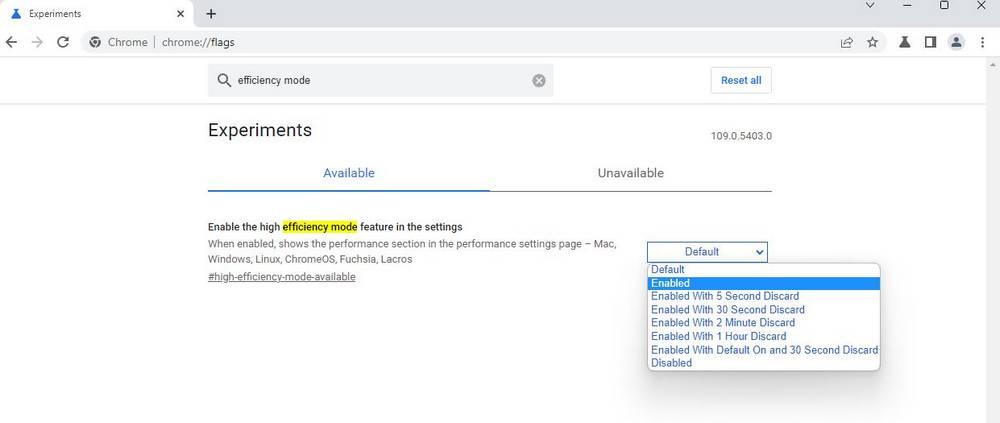
Once the flag, or experimental feature, is enabled, the next step is to restart the browser for the changes to take effect. When Chrome restarts, you can start using this new feature — but first you’ll need to activate it. Go to the browser’s settings and you will see a new Performance section. Select it and enable the feature there.
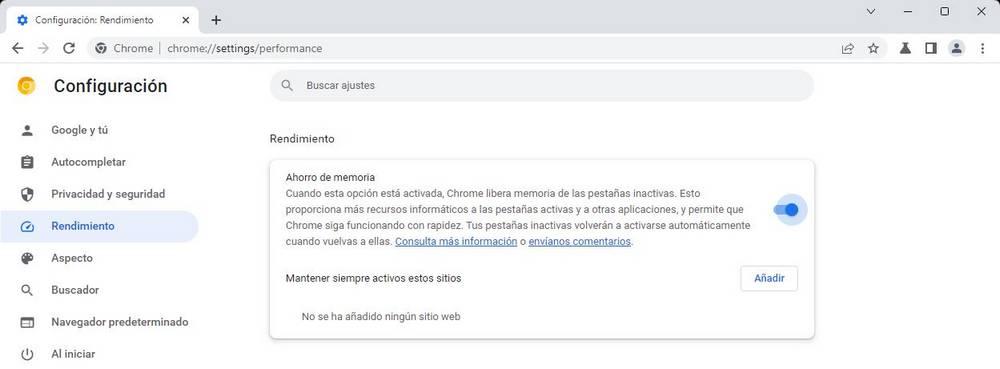
You can also add websites that you do not want to be suspended automatically, so they remain loaded in memory at all times.
When a site is freed up, you will see a new icon in the address bar. Clicking on it will display a message indicating that Chrome has sped things up by releasing the page’s resources and that, upon returning to it, the page has been reloaded.
This way, when browsing the web with many tabs open that are no longer needed, you can let Chrome discard them and free up their memory, automatically recovering them when you go back to use them.
How to Enable Chrome’s Memory Saver
The feature is in Chrome’s settings but easy to miss. Open Chrome, click the three dots in the top right, go to Settings, then Performance. You’ll see “Memory Saver” as a toggle — turn it on. That’s it.
Once enabled, tabs you haven’t looked at for a while get put into a low-memory state. You’ll see a small icon on the tab indicating it’s been saved. When you click it, it reloads — takes about a second — and you’re back where you were.
How Much RAM Does It Actually Save?
Chrome’s own measurements suggest 30-40% RAM reduction when you have many tabs open. In practice, with 15-20 tabs running, the difference on an 8GB machine is noticeable enough to matter. Applications running alongside Chrome (Office, design tools, video editors) will have more breathing room.
On machines with 16GB or more, you’ll barely notice the difference unless you keep dozens of tabs open habitually. The feature has the biggest impact on systems with 8GB or less.
The Tabs It Won’t Touch
Chrome doesn’t put every tab to sleep. Tabs playing audio or video stay active. Tabs with open forms stay active. Pinned tabs can be excluded. You can also manually add specific sites to an exceptions list — useful for web apps you keep open all day like Gmail or Notion.
If Chrome’s Memory Saver Isn’t Enough
If RAM is a constant problem, the underlying issue might be the browser itself. Firefox is generally lighter than Chrome at equivalent tab counts. For very low-RAM machines (4GB), consider a Chromium-based lightweight browser like Vivaldi with aggressive tab suspension settings. Edge’s “Sleeping Tabs” feature is similar to Chrome’s Memory Saver and works well if you’re already in the Microsoft ecosystem.
Frequently Asked Questions
Does Memory Saver affect tab performance when I go back to a tab?
There’s a brief reload when you return to a saved tab — typically under two seconds. The tab reloads exactly where you left it.
Can I choose which tabs Chrome puts to sleep?
You can add sites to an exclusion list in the Memory Saver settings. Tabs from those sites will never be put to sleep.
Does Memory Saver work with pinned tabs?
By default, Chrome doesn’t sleep pinned tabs. You can change this in settings, but most people want pinned tabs to stay active.
Will Memory Saver help with Chrome crashing due to out-of-memory errors?
Often yes. Most “Aw, Snap!” errors are memory-related, and keeping fewer tabs fully loaded in RAM reduces the chance of hitting that ceiling.
Does this feature exist in other Chromium browsers?
Yes — Edge calls it “Sleeping Tabs,” Opera has a similar feature, and Vivaldi has configurable tab hibernation. The concept is the same across all of them.