Complete Beginner’s Guide to Windows 11 (2026 Edition)
Windows 11 has been out for a few years, but a lot of people are still making the switch — either because they just bought a new PC or because Windows 10 support is ending in October 2025. If you’re new to it, the interface changes can feel disorienting at first. This guide walks you through what to do and what to pay attention to in the first few hours with a new Windows 11 installation.
Step 1: Let It Update First
Before configuring anything, go to Settings → Windows Update and run a full update. On a fresh installation or a recently upgraded machine, this can take a while — sometimes an hour or more with restarts. Do it upfront rather than getting interrupted later.
While you’re there, click «Advanced options» and enable «Receive updates for other Microsoft products.» This makes Windows Update also handle Office and other Microsoft software, which is one less thing to manage separately.
Customize the Taskbar and Start Menu
The most noticed change in Windows 11 is the centered Start button. If you prefer it on the left like every previous version of Windows, go to Settings → Personalization → Taskbar → Taskbar behaviors and change the alignment to Left. Takes ten seconds.
The Start menu itself is more limited than Windows 10’s. You can pin apps to it and access recent files in the «Recommended» section, but you can’t resize it or create the complex tile layouts some people used. If you really miss the Windows 10 Start menu, apps like StartAllBack restore it — though that costs a few dollars.
Security Settings to Configure Immediately
Set up Windows Hello
Windows Hello lets you sign in with facial recognition, fingerprint, or PIN. Go to Settings → Accounts → Sign-in options to set it up. If your laptop has an IR camera or fingerprint reader, use it — it’s faster and often more secure than a typed password in practice.
Enable BitLocker if you’re on a laptop
BitLocker encrypts your drive, which means if your laptop is lost or stolen, the data is inaccessible without your password. On Windows 11 Pro, check Settings → Privacy & security → Device encryption. If you enable it, save the recovery key to your Microsoft account or print it and store it somewhere safe — without it, a forgotten password means permanently unrecoverable data.
Built-in Tools Most People Don’t Know About
Snipping Tool
Windows + Shift + S opens the Snipping Tool directly. You can capture a region, window, or full screen, with a delay option for capturing dropdown menus. Windows 11’s version also includes screen recording. For basic captures, it’s enough without installing anything extra.
Virtual Desktops
Windows + Tab opens Task View where you can create virtual desktops. The idea is separating contexts: work on Desktop 1, personal projects on Desktop 2. Win + Ctrl + D creates a new one, Win + Ctrl + Arrow keys switches between them. If you work with a lot of windows open at once, this changes things.
Snap Layouts
Hover over a window’s maximize button and a grid appears showing different layout options — side by side, thirds, quarters. This is one of Windows 11’s genuinely useful additions. Once you start using it for multitasking, it’s hard to go back.
PowerToys — the unofficial Windows toolkit
Microsoft makes a free utility pack called PowerToys (available from the Microsoft Store or GitHub) that adds features Windows should have included. The most useful: FancyZones for custom window tiling layouts, PowerRename for bulk file renaming, and the Color Picker for grabbing hex codes from anything on screen.
Performance: What to Do First
Control startup programs
The biggest cause of slow startups is programs that load automatically at boot. Open Task Manager (Ctrl + Shift + Esc), go to the «Startup apps» tab, and disable everything you don’t need loading at login. Game launchers, messaging apps, manufacturer utilities — most of them add themselves here without asking. Disabling them doesn’t uninstall them; they just don’t start automatically.
Visual effects vs. performance
Search for «Adjust the appearance and performance of Windows» in the Start menu. On older hardware, reducing visual effects makes a noticeable difference. «Adjust for best performance» disables everything — it looks a bit stark, but it’s the fastest option. A middle ground is keeping the checkbox for «Show thumbnails instead of icons» and disabling the rest.
Essential Software to Install First
| Program | Purpose | Cost |
|---|---|---|
| 7-Zip | Compress and extract archive files | Free |
| VLC | Play any video or audio format | Free |
| KeePassXC | Password manager | Free |
| Firefox or Brave | Privacy-focused browser | Free |
| LibreOffice | Office suite alternative | Free |
| Malwarebytes | On-demand malware scanner | Free |
| PowerToys | Windows productivity utilities | Free |
Common Mistakes to Avoid
Don’t install manufacturer bloatware utilities. If you bought a branded PC from Dell, HP, Lenovo, or similar, it came with a bunch of manufacturer apps — «PC Manager,» «Support Assistant,» update utilities. Most of these are unnecessary and run in the background consuming resources. Uninstall what you don’t actually use.
Don’t fall for «optimizer» software. Programs promising to «boost» or «clean» your PC in exchange for a download are almost always useless at best and harmful at worst. Windows has built-in tools (Disk Cleanup, Storage Sense) that do the same things legitimately. The only third-party cleaner worth considering is BleachBit for thorough temp file removal.
Frequently Asked Questions
Can I upgrade from Windows 10 to Windows 11 for free?
Yes, as long as your hardware is compatible. Go to Settings → Windows Update to check if the upgrade is available. If it isn’t, your PC likely doesn’t meet the requirements — mainly TPM 2.0 and a supported processor.
Is Windows 11 slower than Windows 10 on the same hardware?
On supported hardware, the performance difference is minimal. The stricter hardware requirements exist partly to ensure Windows 11 runs well on the machines it installs on.
Can I go back to Windows 10 if I don’t like Windows 11?
Yes, within the first 10 days after upgrading, via Settings → System → Recovery. After that, you’d need to do a clean reinstall of Windows 10 from a USB drive.
Do I need a Microsoft account to use Windows 11?
On Windows 11 Home, Microsoft requires one during setup. On Pro, you can choose a local account during installation. There are workarounds for Home users too (like disconnecting from the internet during setup), but they require some technical steps.
How much RAM does Windows 11 actually need to run well?
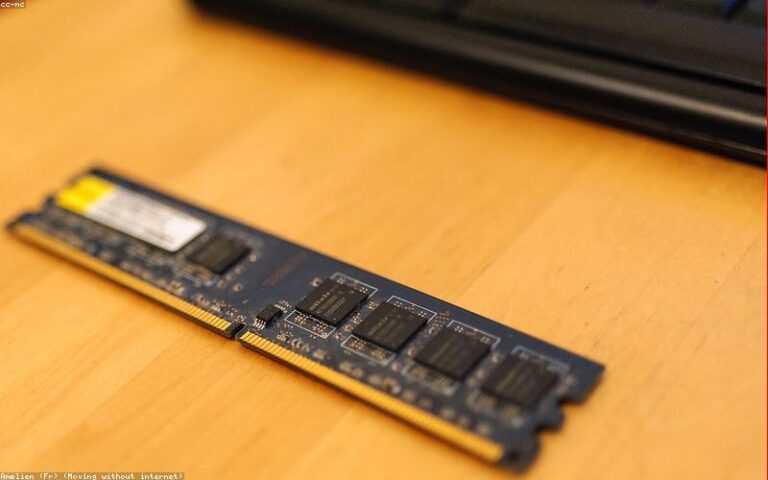
The minimum is 4 GB, but the experience is constrained. 8 GB is fine for general use. For heavy multitasking or demanding applications, 16 GB is the comfortable spot.
Related Guides
- How to Speed Up Windows 11 — 12 tweaks that actually make a measurable difference
- How to Split Screen in Windows 11 — Snap Layouts, keyboard shortcuts, and FancyZones
- How to Enable Dark Mode — And how to set up automatic time-based switching
- How to Use Dual Monitors on Windows 11 — Setup and productivity tips
- Best Free Software for Windows 2026 — The complete list of essential apps