How Much RAM Do You Actually Need in 2026?
How Much RAM Do You Actually Need in 2026?
Your laptop froze again. You had Chrome open, a Slack call running, and VS Code in the background — nothing exotic. If that sounds familiar, the answer probably isn’t a new machine. It’s just more RAM. But how much is enough, and how much is overkill? Let’s be direct about it.
The 8 GB Myth
Eight gigabytes was the “good enough” standard for years. In 2026, it’s a liability. macOS Sequoia’s memory pressure system will let you run on 8 GB, but you’ll feel it. Open Activity Monitor on a base-model M4 MacBook Air and watch the “Memory Used” bar sit at 90% before you’ve even opened your main app. That’s not a bug. That’s the OS doing its best with too little headroom.
Read also: ChatGPT vs Claude vs Gemini Which is Best
On Windows, it’s the same story. Task Manager’s Performance tab will show you constant page file activity — the system shuffling data to your SSD because RAM ran out. SSDs are fast, but they’re not RAM-fast. That shuffle is why your app took four seconds to respond when it should’ve taken one.
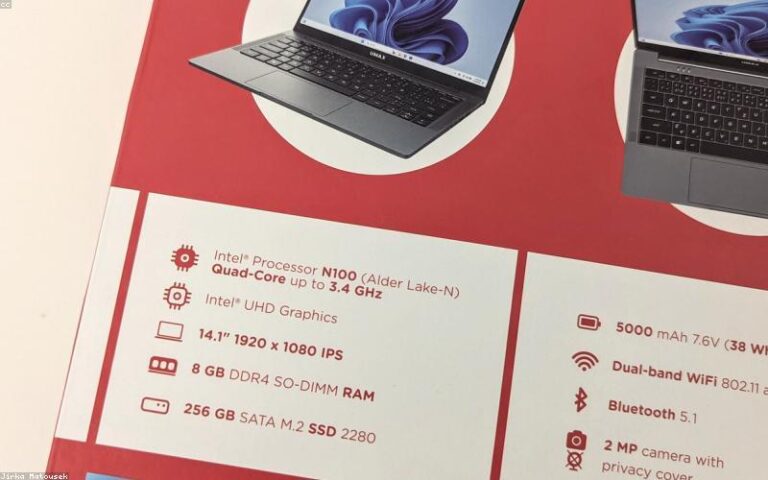
8 GB is survivable for a single-purpose machine — a dedicated kiosk, a media player, a kid’s homework laptop. For anyone doing actual work, it’s a starting point that you’ve already outgrown.
16 GB: The Real Baseline in 2026
For most people, 16 GB is where life gets comfortable. You can run a browser with 20+ tabs, a communication tool like Slack or Teams, a code editor, and a PDF open in the background — simultaneously — without the machine gasping. That covers the overwhelming majority of office workers, students, developers working on small-to-medium projects, and content consumers who also occasionally create.
If you’re using Windows 11 with WSL2 for light development, 16 GB handles it well. If you’re on macOS running Xcode alongside Safari and Mail, 16 GB keeps things smooth. Photoshop with a few open documents? Fine. Lightroom processing a batch of 24 MP RAW files? Workable, not luxurious.
The realistic ceiling for 16 GB is roughly here:
- Running a local Docker environment with two or more containers
- Compiling large C++ or Rust projects while other apps are open
- Video editing timelines longer than a few minutes at 4K
- Running a local LLM (even a small 7B-parameter model needs breathing room)
Hit any of those walls and you’ll know immediately. The fans spin up, the cursor stutters, and you wait.
32 GB: Where Power Users Live
Developers working on backend services, data engineers running local Spark jobs, video editors cutting 4K or 6K footage in DaVinci Resolve — 32 GB is where these workflows stop being a negotiation between apps and start just working. No compromises.
Running a local AI inference stack with Ollama and a 13B model like Llama 3? That’s comfortably within reach at 32 GB. Same with keeping a full dev environment alive — Docker Desktop with a Postgres container, a Redis instance, a Node API, and a frontend dev server — while simultaneously debugging in VS Code with the TypeScript language server fully loaded.
On Apple Silicon machines, the unified memory architecture makes 32 GB go further than it does on x86 systems, because the GPU and CPU share the same pool. A 32 GB M4 Pro handles Final Cut Pro timelines with ease that an equivalent Intel machine would’ve needed 64 GB to match two years ago.
If you’re buying a workstation and you’re not sure whether you need 32 or 64 GB, the honest answer is: buy the 32 GB option and revisit in two years. Workloads expand to fill available memory, but most professionals don’t actually saturate 32 GB today.
64 GB and Beyond: Specific, Not General
64 GB and above is for specific professional use cases — not for “future-proofing.” If you’re training machine learning models locally, working in 3D animation in Blender or Houdini, building large-scale CAD assemblies in SOLIDWORKS, or running a full virtualization stack with multiple VMs simultaneously, you know you need this tier. The workload makes it obvious.
For everyone else, 64 GB is money you could spend on a faster CPU, better storage, or a second display. Those upgrades will change your daily experience far more than RAM headroom you’ll never actually use.
One exception worth calling out: ML engineers running larger local models are a growing cohort. An Ollama setup with Mixtral or a quantized 70B model will genuinely benefit from 64 GB of unified memory on an M4 Max. But that’s a deliberate workflow choice, not a vague hedge against “doing more in the future.”
How to Know What You Actually Use
Don’t guess. Check. On macOS, open Activity Monitor, click the Memory tab, and look at “Memory Pressure” during your normal workday — not during a clean reboot. If it’s consistently orange or red, you’re starved. On Windows, open Task Manager → Performance → Memory and check your “In Use” figure against total capacity at peak hours. If you’re regularly above 80%, you’re compressing and paging constantly.
Linux users can run free -h or use htop to watch real-time memory allocation. The key number isn’t “available” — it’s “used” minus file cache. That’s your real footprint.
RAM is one of the least exciting specs to talk about, but it’s one of the most directly felt. A fast processor can’t save a workflow that’s constantly swapping to disk. A stunning display doesn’t help when your app is unresponsive. Get the RAM right first, then optimize everything else.
The simple version: 16 GB for most people, 32 GB if you’re a developer or creative professional, 64 GB only if your specific workload demands it. That’s the whole guide. Everything else is spec sheet theater.
Preguntas Frecuentes
The 8 GB Myth
Eight gigabytes was the "good enough" standard for years.
16 GB: The Real Baseline in 2026
For most people, 16 GB is where life gets comfortable.
32 GB: Where Power Users Live
Developers working on backend services, data engineers running local Spark jobs, video editors cutting 4K or 6K footage in DaVinci Resolve — 32 GB is where these workflows stop being a negotiation between apps and start just working.
64 GB and Beyond: Specific, Not General
64 GB and above is for specific professional use cases — not for "future-proofing.
How to Know What You Actually Use
Don't guess.